NVIDIA L4 GPU cloud is exactly what it sounds like: on-demand access to NVIDIA’s L4 GPU, hosted and billed through a cloud provider instead of hardware you buy and maintain yourself.
Most people land on this page for one reason. You are running AI inference, chatbots, recommendation engines, generative AI features, anything that takes an already-trained model and puts it to work against real traffic. If that’s you, you’re in the right place.
There’s a reason so many teams pick the NVIDIA L4 GPU for this exact job. It draws a fraction of the power a training GPU needs, it costs meaningfully less to run, and it still has enough memory and Tensor core performance to handle production inference without strain. When the job is inference, not training, an L4 GPU cloud instance is hard to beat on cost per request. And that’s really the point of GPU cloud in the first place: real performance, without paying for capacity you’re not using.
In this blog, we’ll get straight into it: what it takes to get an L4 instance up and deployed on CloudPe, in minutes.
A quick refresher: what is L4 GPU built for
The L4 is NVIDIA’s inference GPU. Ada Lovelace architecture, 24GB of GDDR6 memory, just 72W of power draw. It’s not built to train models, it’s built to run them, efficiently, at scale, without the cost of a training-class chip.
If you want the full breakdown, specs, benchmarks, all of it, [that lives in our dedicated L4 specs guide]. This piece assumes you already know that part and just want to get moving.
Your L4 GPU instance is one click away.
Deploy L4 GPU nowWhat is L4 GPU cloud used for
Here are some use cases of NVIDIA L4 GPU
- AI inference: chatbots, recommendation engines, fraud detection, anything serving real users in real time
- Video processing: transcoding and streaming, powered by the L4’s dual NVENC encoders
- Computer vision: object detection and video analytics for retail, manufacturing, and security
- Virtual desktops: graphics-heavy CAD and design work, run remotely instead of on local workstations
If your workload fits one of these, you’re in the right place.
One thing to check before you deploy
Quick gut check before you commit: is your model already trained?
The L4 is for running models, not training them. If you’re still training or fine-tuning something large, you want an A100 or H200 instead, and this walkthrough won’t be the right one for you. If the model’s built and you’re ready to serve it, keep going.
Now that we have left all that behind us, its time for the real talk. “How to deploy NVIDIA L4 GPU cloud?”
Well, the answer is simple → CloudPe
You can deploy any kind of VMs or GPUs with CloudPe within minutes. (subject to availability).
But, if you are wondering “Why CloudPe?”
Here’s why:
- It’s fast: Most providers make you wait on provisioning, sometimes hours. CloudPe gets an L4 instance live in about 60 seconds from the dashboard.
- Flat pricing: L4 GPU instances start at ₹26,180 a month, all in. No separate storage or bandwidth line items showing up later.
- It’s faster: CloudPe benchmarks 33% faster than AWS and 45% faster than Azure on equivalent infrastructure. That’s not a claim, it’s a number you can hold us to.
- Support actually responds: Under 2 hours, 24/7, not a ticket queue you forget about.
- Credibility in the market: 600+ customers, across 15+ countries, already running on CloudPe.
Your L4 GPU instance is one click away.
Deploy L4 GPU nowNow let’s get to the step-by-step guide on how to deploy NVIDIA’s L4 GPU cloud with CloudPe. It is super easy by the way, but here you go.
How to deploy an NVIDIA L4 GPU instance on CloudPe
Before you start
Make sure you have an account on CloudPe.
If you don’t have an account, create a free account here.
Now that we are signed-in, lets begin the real work.
Step 1:
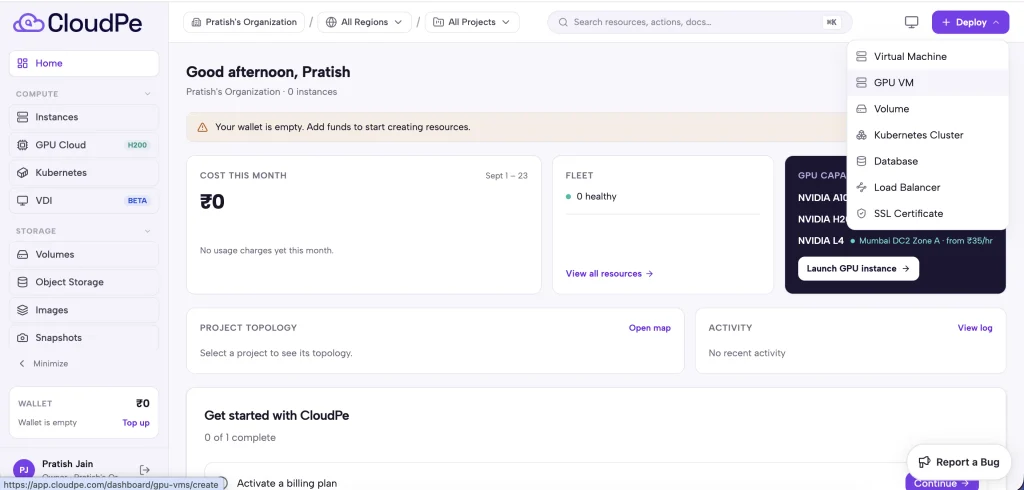
Click “GPU Cloud” in the left side panel
OR
Go to “Deploy” button on top right corner of the portal and then select “GPU VM”
Step 2:
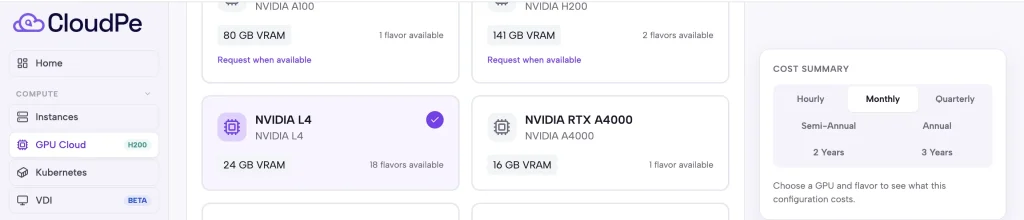
Select NVIDIA L4 GPU option from the dashboard.
On the right side, select the duration on how you would want to be billed. (Hourly, Monthly, Annually, and more.)
Then click “Next” at the bottom.
Step 3:
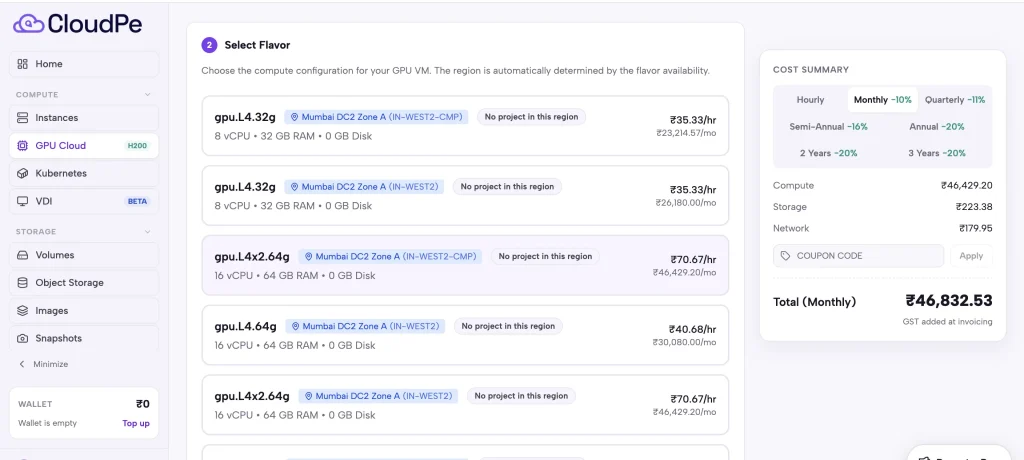
Select the flavor (the plan) you want, then scroll down.
Click the “Next” button at the bottom right of the portal.
Step 4:
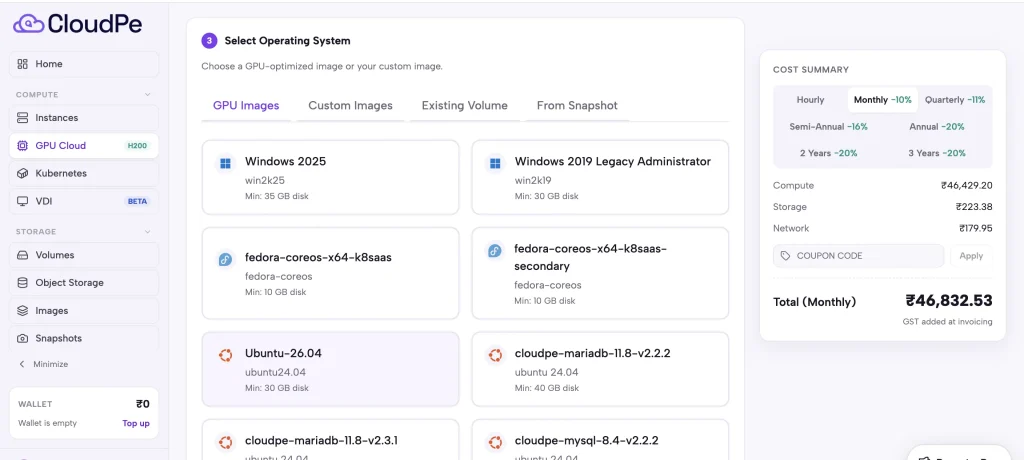
Select from 40+ OS, then one that fits best for your requirements and scroll down.
Click the “Next” button at the bottom right of the portal.
Step 5: Connect and confirm GPU access
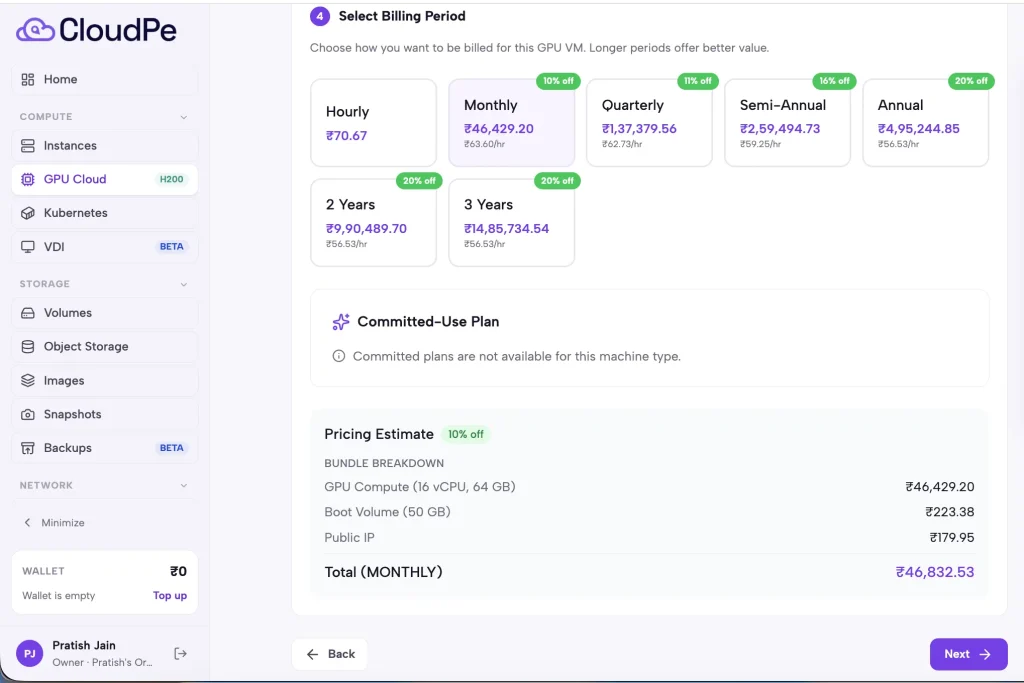
Select your billing period and then press next.
Step 6: Final step → configure your VM
- Name your VM
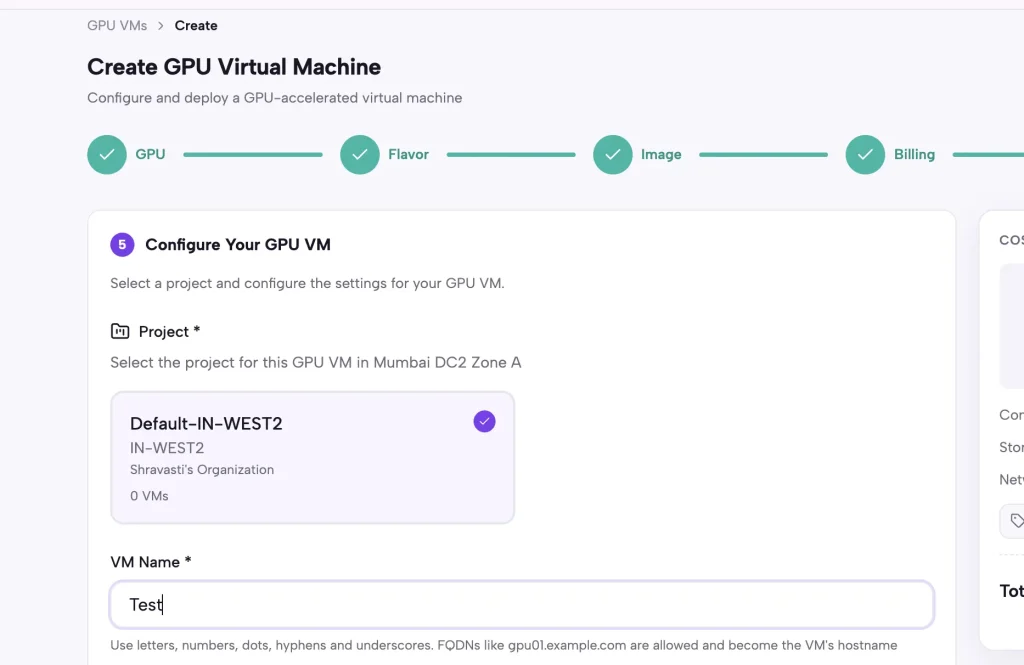
Scroll down
- Select how much storage you need and the storage type
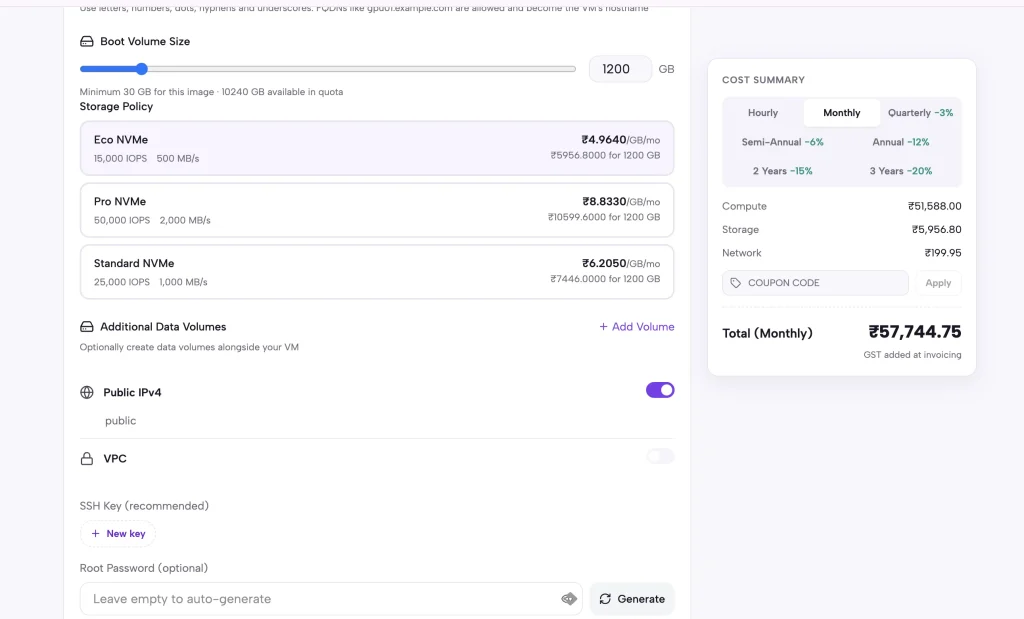
- Final overview
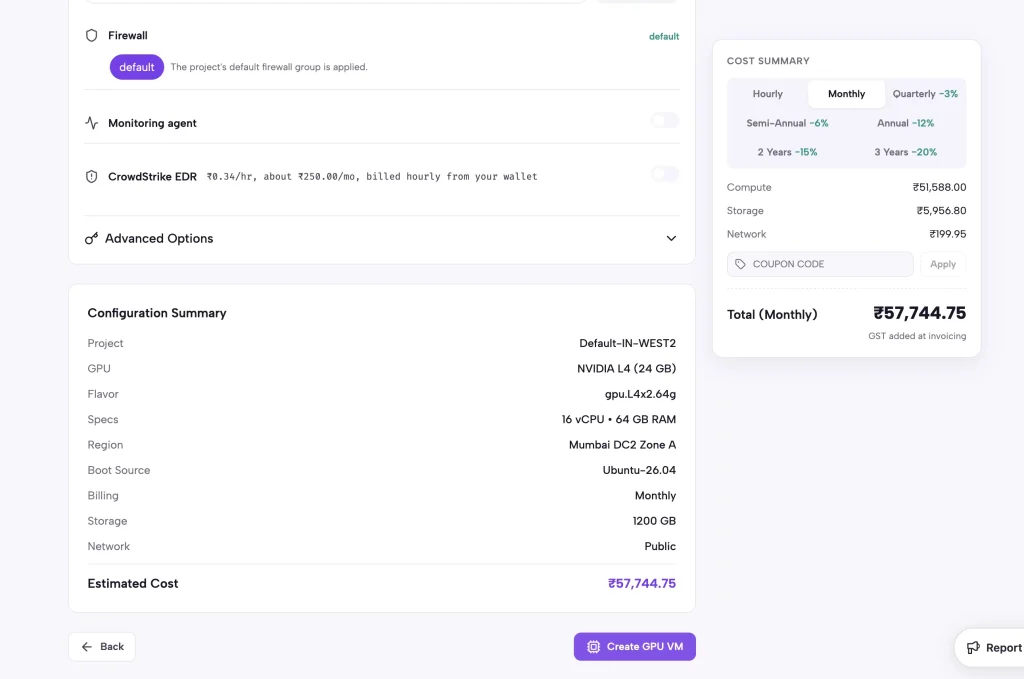
Hit “Create GPU VM”.
Congratulations, you have successfully configured and deployed L4 GPU on cloud.
Get your workloads working on L4 GPU cloud.
Deploy nowIs the NVIDIA L4 right for you?
If your model’s already built and the job now is running it against real traffic at the lowest cost per request, yes. Same goes for video processing, computer vision, and VDI, where steady throughput matters more than peak power.
If you’re still training or fine-tuning something large, this isn’t your GPU yet. Come back to this once the model’s stable and ready to serve.
If you have any queries or confusion regarding this, feel free to contact us, we are more than happy to help you with this →
Mail: sa***@*****pe.com
Contact: +91 9599656657
Frequently Asked Questions
How long does it take to deploy an L4 GPU instance on CloudPe?
Around 60 seconds from the dashboard, once you’ve selected a plan and configuration.
Can I run PyTorch or TensorFlow on an L4 instance right after deploying?
Yes. The L4 supports standard NVIDIA drivers and CUDA libraries and works with PyTorch, TensorFlow, and OpenCV without special configuration.
What if I need more GPU power later?
You can move to a higher GPU tier as your workload grows. Training on a larger GPU and serving on L4 is a common setup, and CloudPe supports both without switching providers.
Is there a minimum commitment to try an L4 instance?
[Confirm actual CloudPe billing terms, monthly minimum, hourly option, free trial, before publishing.]