Your cloud VM is running a production website or application, and CPU or memory usage keeps creeping toward its limit. The obvious solution is to add more resources. But that raises an important question: can you resize a cloud VM without taking it offline?
The answer depends on what you’re resizing and the infrastructure you’re using. Some cloud platforms support adding CPU, memory, or storage while a VM is running. Others require a restart, particularly when changing the VM’s instance type.
Even when a restart is unavoidable, you can often keep your application available by using redundancy, load balancing, or a replacement VM.
This blog explains how cloud VM resizing works, which resources can be expanded online, and how to resize your infrastructure while minimizing disruption.
What is Cloud VM resizing?
Cloud VM resizing means changing the computing resources allocated to an existing virtual machine, such as CPU, RAM, storage, or the instance type, to match changing workload requirements.
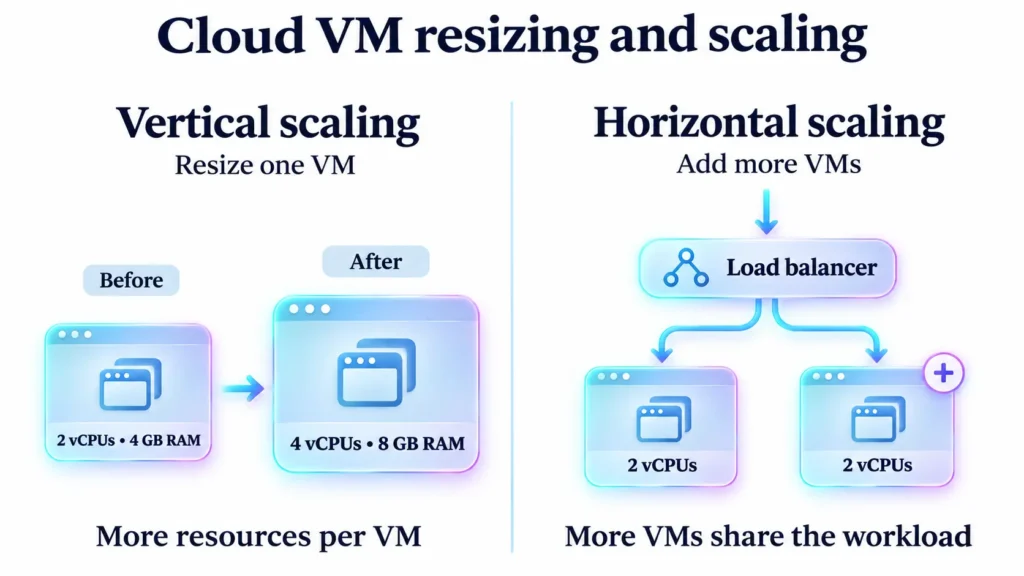
For example, imagine your application runs on a cloud VM with 2 vCPUs, 4 GB RAM, and 100 GB storage. As traffic increases, the application starts responding more slowly. Rather than migrating everything to a completely different environment, you may be able to increase the VM’s resources to 4 vCPUs and 8 GB RAM.
This approach is called vertical scaling, where you increase or decrease the resources of an individual VM.
The alternative is horizontal scaling, which adds more VMs and distributes workloads across them. Instead of increasing one VM from 2 to 4 vCPUs, you might deploy another 2-vCPU instance and use a load balancer to distribute traffic.
Both approaches help accommodate growing workloads, but they work differently.
Vertical scaling is often simpler because your application remains on a single machine. However, it has resource limits, and certain changes may require restarting the VM.
Horizontal scaling provides greater flexibility for applications designed to run across multiple instances. It can also help maintain availability during infrastructure changes.
This brings us to the important question: which cloud VM resources can actually be resized without downtime?
Can you resize a cloud VM without downtime?
Yes, but not every cloud VM supports live resizing.
Whether you can resize a running VM depends on three factors: the resource being modified, the virtualization platform, and the guest operating system.
For example, many cloud providers allow you to increase virtual disk capacity while the VM remains online. However, increasing CPU or RAM without restarting requires support for features such as CPU hot-add or memory hot-add.
Changing an entire VM instance type is more restrictive and often requires stopping or restarting the machine.
Here’s how different resources typically behave.
| Resource | Can It Be Resized Online? | Important Consideration |
| CPU | Sometimes | Requires CPU hot-add support |
| RAM | Sometimes | Requires memory hot-add support |
| Storage capacity | Often | Partition and filesystem may need expansion |
| Instance type | Provider-dependent | Usually requires a restart or stop/start |
| Disk reduction | Generally not in place | May require migration or disk recreation |
One important distinction is that resizing a VM without shutting it down doesn’t necessarily mean your application will experience zero interruption.
For instance, expanding a virtual disk might not require a reboot, but the operating system must still recognize and use the additional capacity. Similarly, adding CPU resources may work at the hypervisor level while an application continues using its previously detected CPU configuration.
If uninterrupted application availability is your priority, the resizing method needs to account for both infrastructure and application behavior.
Before making any changes, you should confirm that your existing VM configuration supports the operation.
Not sure which VM resizing to choose for your workloads?
Talk to an expertWhat to check before resizing a cloud VM
Resizing a cloud VM is generally straightforward when the environment supports it. However, making changes without checking the current configuration can introduce unnecessary risks.
Before proceeding, review the following:
1. Identify the actual resource bottleneck.
Check CPU utilization, memory consumption, disk usage, and disk I/O performance.
For example, if your VM is experiencing slow database queries because of storage latency, increasing RAM may not resolve the underlying problem.
Use monitoring data collected over time rather than relying on a single utilization spike.
2. Confirm cloud platform compatibility.
Check whether your provider supports live resizing for the resource you want to change.
CPU and memory hot-add capabilities depend on the hypervisor, VM configuration, operating system, and sometimes the instance family.
3. Verify operating system support.
Even when the virtualization platform supports live resource expansion, the guest OS must be capable of recognizing those resources.
Linux and Windows may handle CPU, memory, and storage changes differently depending on their versions and configurations.
4. Take a backup and prepare a rollback plan.
Before modifying production infrastructure, create or verify a recent backup.
A VM snapshot can help with certain rollback scenarios, but it shouldn’t replace a separately stored, recoverable backup.
5. Check application dependencies.
Review IP address assignments, database connections, mounted storage, clustering configurations, and monitoring systems.
Some resize operations involving VM deallocation can affect dynamically assigned IP addresses or other infrastructure settings.
Once these checks are complete, you can choose the appropriate resizing procedure.
How to resize a cloud VM without downtime
The exact resizing process varies between cloud providers, but the general approach is similar.
Start by identifying the resource that needs expansion and confirming that the platform supports changing it while the VM is running.
Step 1: Identify the resource bottleneck
Review your VM’s current resource utilization using the cloud monitoring dashboard or operating system tools.
On Linux, you can use commands such as:
- top or htop to inspect CPU and memory usage.
- free -h to check available memory.
- df -h to review filesystem capacity.
- lsblk to inspect attached block devices.
On Windows, Task Manager and Performance Monitor provide similar information.
Determine whether the VM needs additional CPU, RAM, storage, or a combination of resources.
Step 2: Select the target configuration
Choose the resource allocation that meets your workload requirements.
For example, if memory utilization consistently remains above 85% during normal operations, increasing RAM may provide additional capacity.
However, avoid selecting a larger VM based on utilization percentages alone. Consider application behavior, peak demand, performance requirements, and expected growth.
Step 3: Confirm live resizing support
Check the cloud provider’s documentation or management console to determine whether the selected resource can be expanded without stopping the VM.
If live resizing is supported, proceed with the appropriate resource-specific method.
If it isn’t supported, you’ll need to use a restart-based or replacement-VM approach, which we’ll cover later.
How to increase cloud VM CPU and RAM without restarting
Some virtualization platforms support adding virtual CPUs or memory to a running VM through CPU hot-add and memory hot-add features.
When supported and properly configured, these features allow the hypervisor to present additional computing resources to the guest operating system without requiring a full restart.
The general process involves:
- Confirming that CPU or memory hot-add is enabled and supported.
- Selecting the new CPU or RAM allocation in the cloud management interface.
- Applying the change using the platform’s supported live-resize operation.
- Verifying that the guest operating system recognizes the additional resources.
On Linux, you can check the available CPU and memory using:
nproc
free -h
For more detailed CPU information, run:
lscpuOn Windows, open Task Manager and navigate to the Performance tab to check the available processors and memory.
Keep in mind that hot-add support isn’t universal. Some applications may also need to be restarted or reconfigured to take full advantage of the new resources.
If your cloud provider doesn’t support live CPU or RAM expansion, don’t assume that changing the configuration in the dashboard will avoid downtime.
How to expand cloud VM storage online
Increasing storage capacity is one of the more commonly supported online resizing operations.
Most major cloud platforms allow supported virtual disks to be expanded while the VM remains running.
However, expanding the disk at the infrastructure level is only part of the process. You may also need to extend the partition and filesystem inside the operating system.
For example, suppose your Linux cloud VM has a 100 GB disk, and you want to increase it to 200 GB.
First, increase the virtual disk capacity through your cloud provider’s management console.
Then, inside the Linux VM, inspect the disk layout:
lsblkIf the operating system recognizes the larger disk but the partition still uses the original capacity, you may need to expand that partition.
For supported partition layouts, a tool such as growpart can help extend the partition. The exact command depends on the disk and partition identifiers.
Afterward, expand the filesystem using the appropriate tool.
For an ext4 filesystem, this may involve:
sudo resize2fs /dev/<partition>For an XFS filesystem, the process typically uses:
sudo xfs_growfs <mount-point>These are illustrative commands, not a universal sequence. Verify the actual device, partition layout, filesystem, and storage configuration before running them. LVM-based installations may require additional steps.
On Windows cloud VMs, you can typically extend a supported volume through Disk Management or PowerShell after expanding the underlying virtual disk.
Once the operation is complete, confirm that the operating system recognizes the additional storage.
Step 4: Verify the resized VM
After changing the resources, check whether the guest operating system reports the expected CPU, memory, or storage capacity.
Then verify that the applications running on the VM continue functioning correctly.
Check website availability, application response times, database connectivity, system logs, and monitoring alerts.
Step 5: Monitor performance after resizing
Continue monitoring the VM after the operation.
Compare CPU utilization, memory consumption, storage usage, and application response times against the values recorded before resizing.
A successful infrastructure change doesn’t automatically mean the original performance problem has been resolved.
If the bottleneck remains, investigate whether another resource or application-level issue is responsible.
| Looking for resizing a VM? | Contact CloudPe experts |
How to resize a cloud VM when a restart is required
What happens if your cloud platform doesn’t support live resizing?
For many cloud VMs, changing the instance type or increasing CPU and RAM requires stopping or restarting the machine.
In this situation, maintaining application availability becomes more important than keeping the original VM running.
One approach is to deploy a replacement VM with the required resources and migrate traffic to it.
For example, imagine your production application runs on a VM with 4 vCPUs and 8 GB RAM, but growing traffic requires 8 vCPUs and 16 GB RAM.
Instead of stopping the existing VM immediately, you can:
- Provision a new VM with the required CPU, RAM, and storage.
- Install or replicate the application environment.
- Synchronize the necessary application data and configurations.
- Test the new VM before sending production traffic to it.
- Configure the load balancer to direct traffic to the new instance.
- Monitor the application before retiring the original VM.
This approach can maintain service availability during the infrastructure change, provided the application supports the migration and traffic can be transferred safely.
For applications already running across multiple VMs, a rolling replacement strategy may be more appropriate.
With rolling replacement, you remove one VM from the load balancer, resize or replace it, verify its health, and return it to service before modifying the next instance.
This allows the remaining VMs to continue handling incoming requests.
However, zero-downtime replacement requires additional planning for stateful applications. Database synchronization, active sessions, persistent storage, and background jobs must be handled carefully to prevent data loss or interrupted transactions.
For a single VM hosting both an application and its database, simply adding a load balancer won’t guarantee zero downtime.
The application architecture must support the transition.
Cloud VM resizing from providers
Cloud VM resizing capabilities vary significantly between providers.
Some platforms support online storage expansion but require a restart for CPU or RAM changes. Others offer hot-add capabilities for certain VM configurations.
Here’s a general comparison.
| Cloud Platform | CPU/RAM Resizing | Storage Expansion |
| Google Cloud Compute Engine | Machine-type changes generally require stopping the VM | Supported persistent disks can typically be expanded online |
| Microsoft Azure Virtual Machines | VM resizing commonly requires a restart; some changes require deallocation | Online expansion depends on disk type and VM capabilities |
| CloudPe | Resize behavior depends on the VM plan and configuration; check current support before planning a live change | Disk expansion options vary by plan and storage type |
| Private cloud virtualization | CPU/RAM hot-add may be available when supported and configured | Often supports online disk expansion |
The key takeaway is that cloud VM resizing capabilities should always be verified for your specific environment rather than assumed based on the provider alone.
How does resizing affect cloud VM pricing?
Resizing a cloud VM can change your infrastructure costs because cloud providers typically calculate pricing based on allocated computing resources.
Increasing CPU, RAM, or storage generally increases the cost of running the VM.
For example, moving from a 2-vCPU instance to an 8-vCPU instance may significantly increase compute charges, depending on the provider and machine family.
Storage expansion can also add costs based on the additional capacity and storage type.
Windows cloud VMs may include operating system licensing charges, while some applications have licensing models tied to processor counts or allocated resources.
When evaluating cloud VM pricing, consider more than the instance’s hourly or monthly cost. Storage, bandwidth, backups, software licensing, and additional infrastructure components can affect the total expense.
Also review whether resizing changes your eligibility for existing discounts or committed-use pricing.
For users running a cloud VM for personal use, free-tier limits are another important consideration.
A free cloud VM may be sufficient for basic development, testing, or small applications, but increasing resources beyond the provider’s free allocation can introduce charges.
Always review the updated pricing before applying a resize.
Is resizing a free cloud VM possible?
Free-tier cloud VMs typically come with fixed resource limits, and resizing beyond those limits usually means leaving the free tier and starting to pay standard rates. Eligibility rules, included resources, and what counts as “free” vary by provider and change over time, so check current provider documentation rather than relying on older claims about free-tier limits. This matters if you’re evaluating a free or low-cost cloud VM for personal use: confirm what resizing actually costs before you rely on an instance staying free as your usage grows.
Common cloud VM resizing mistakes to avoid
Cloud VM resizing can improve application performance, but several common mistakes can lead to unnecessary downtime, higher costs, or unresolved performance problems.
Resizing without identifying the bottleneck
Increasing CPU or RAM won’t necessarily improve performance if the underlying issue is storage latency, database queries, or network congestion.
Assuming every resize can happen online
Not all cloud providers support live CPU or memory expansion. Some instance-type changes require a complete restart or deallocation.
Skipping backups before resizing
Even routine infrastructure changes can introduce unexpected problems. Maintain a verified backup and a clear recovery procedure before modifying production VMs.
Forgetting to expand the filesystem
Increasing the virtual disk capacity doesn’t always make the additional storage immediately available inside the operating system.
Ignoring application dependencies
IP addresses, database connections, local sessions, and attached storage can be affected by certain resize or migration operations.
Not monitoring performance afterward
Always verify that the new resources are recognized and that the application is performing as expected.
Avoiding these mistakes makes resizing more predictable and reduces the risk of unexpected service interruptions.
| Running VMs on CloudPe and planning a resize? | Contact CloudPe support |
Conclusion
Resizing a cloud VM without downtime is possible, but the available method depends on the resources being changed and the capabilities of your cloud platform.
Storage expansion can often be completed online, while CPU and memory changes may require hot-add support. When a restart is unavoidable, strategies such as load balancing, rolling replacement, and redundant infrastructure can help maintain application availability.
The most important step is to plan the resize around your workload, verify platform compatibility, and monitor performance afterward.
Choosing a cloud infrastructure platform that supports flexible resource allocation and scalable architectures can make future resizing simpler, safer, and more predictable.
Frequently Asked Questions
1. What is a VM in the cloud?
A cloud VM is a virtual machine hosted on a cloud provider’s physical infrastructure. It operates like an independent server with allocated CPU, RAM, storage, and networking resources. Cloud VMs can run operating systems, host websites, support applications, and provide development environments.
2. Is Google Cloud VM free?
Google Cloud offers a free-tier allocation for certain eligible Compute Engine configurations, subject to usage limits and conditions. Resources outside those limits may incur charges. Check the current Google Cloud VM free tier documentation for eligible machine types, regions, and usage allowances.
3. How much does a cloud VM cost?
Cloud VM pricing depends on the number of vCPUs, allocated RAM, storage capacity, operating system, region, and provider. Costs may also include bandwidth, backup storage, and software licensing. Most providers offer pricing calculators to estimate expenses before deployment.
4. Can I use Azure VM for free?
Microsoft Azure offers limited free services and eligible VM usage allowances under certain account offers. Availability, duration, and resource limits depend on the current offer and account eligibility. Additional usage or resizing beyond included limits may result in charges.
5. Can I increase cloud VM RAM without restarting?
Yes, if your cloud platform, hypervisor, and guest operating system support memory hot-add for the VM’s configuration. Otherwise, increasing RAM generally requires a restart or migration to another instance.
6. Can I resize a cloud VM while it is running?
Some cloud VM resources can be resized while the VM remains running. Online storage expansion is commonly supported, while CPU and RAM changes depend on hot-add capabilities. Changing the entire VM instance type often requires stopping or restarting the instance.