A Windows virtual machine lets you run a full copy of Windows inside your existing computer, without touching your main operating system. You get a second, isolated Windows environment that you can create, use, and delete whenever you want.
People use Windows VMs to test software safely, run older Windows versions for specific apps, try Windows on a Mac, or host Windows-based workloads on a server. This guide covers what a Windows VM needs to run, how to pick a setup option, and the exact steps to get one running.
What is a Windows virtual machine?
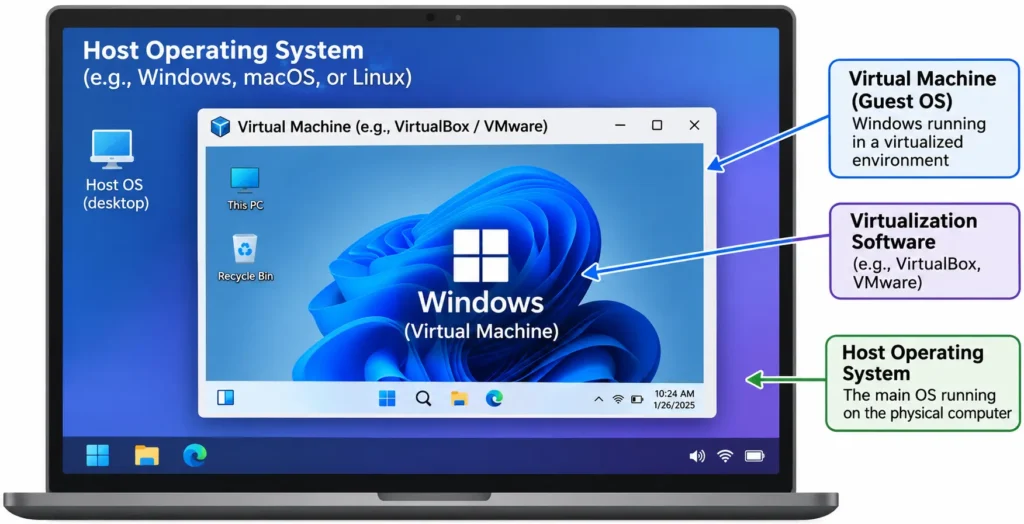
A Windows virtual machine is a software-based version of a Windows computer that runs inside another computer. A program called a hypervisor creates the virtual machine and gives it its own virtual CPU, memory, storage, and network connection.
To the virtual machine, it looks and behaves like a real, standalone PC. To your actual computer, it’s just a program running in the background. You can run Windows 10 or Windows 11 inside this virtual machine while your host computer runs Windows, macOS, or Linux underneath it.
System requirements for a Windows VM
Before you set anything up, check that your computer can handle it. These are the practical minimums for a usable Windows 11 VM, not just the bare technical floor.
| Resource | Minimum | Recommended |
| RAM | 4 GB | 8 GB |
| CPU cores | 2 virtual cores | 4 virtual cores |
| Storage | 60 GB | 80 GB |
One requirement matters more than any number on this list: hardware-assisted virtualization must be turned on in your PC’s BIOS or UEFI settings. Without this, no hypervisor will run a VM at all, regardless of how much RAM or storage you have.
Choose your setup option
You have four practical ways to run a Windows VM. Which one fits depends on your host operating system and what you’re using the VM for.
| Option | Cost | Best host OS | Best for |
| VirtualBox | Free | Windows, macOS, Linux | Personal use, testing, beginners |
| Hyper-V | Free (built in) | Windows 11 Pro, Enterprise, Education | Windows power users, dev/test environments |
| Parallels Desktop | Paid | macOS | Running Windows apps alongside macOS |
| Cloud VM | Pay-as-you-go | Any (browser-based access) | No local hardware limits, remote access, server workloads |
VirtualBox is Oracle’s free, open-source hypervisor. It runs on almost any host OS, which makes it the most flexible starting point if you’re not sure which tool to pick.
Hyper-V is Microsoft’s own hypervisor, built directly into Windows. It only ships with Windows 11 Pro, Enterprise, and Education. If you’re on Windows 11 Home, you won’t find it, and VirtualBox is your option instead.
Parallels Desktop is built specifically for running Windows on a Mac, including Macs with Apple Silicon chips. It’s a paid product, but it’s the most polished option for that specific use case.
Cloud VMs remove the local hardware question entirely. Instead of your own CPU and RAM, you’re renting someone else’s. This matters when your laptop can’t spare 8 GB of RAM for a VM, or when you need the VM accessible from more than one device.
How to set up a Windows virtual machine
Pre-requisites
- An Active CloudPe Account
If you don’t have an account on CloudPe yet, you can sign-up and get a free 14 days trial. It is super easy to create an account on CloudPe, follow the instructions in the video below.
Step 1:
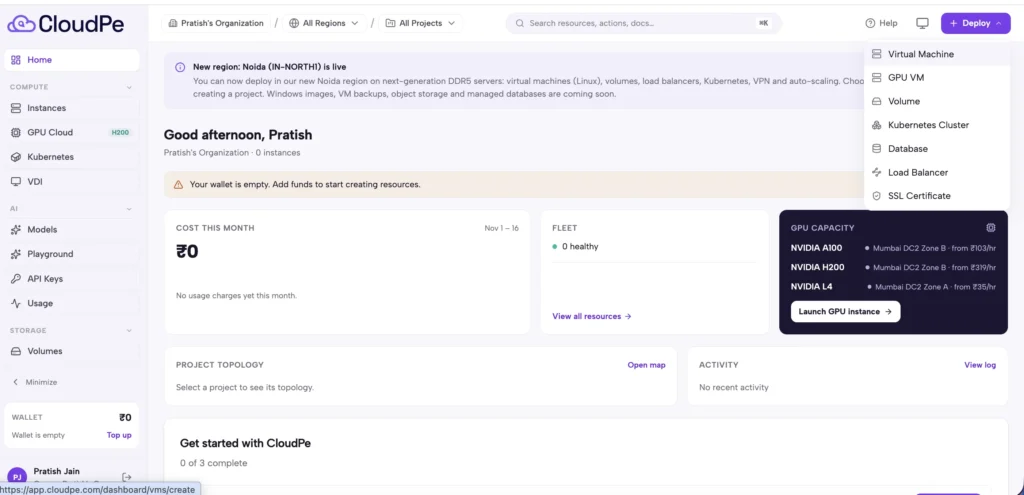
- Sign-in to your CloudPe account.
- On the top right corner click on the lue “Deploy” button.
- From the drop-down select “Virtual Machine”
Step 2:
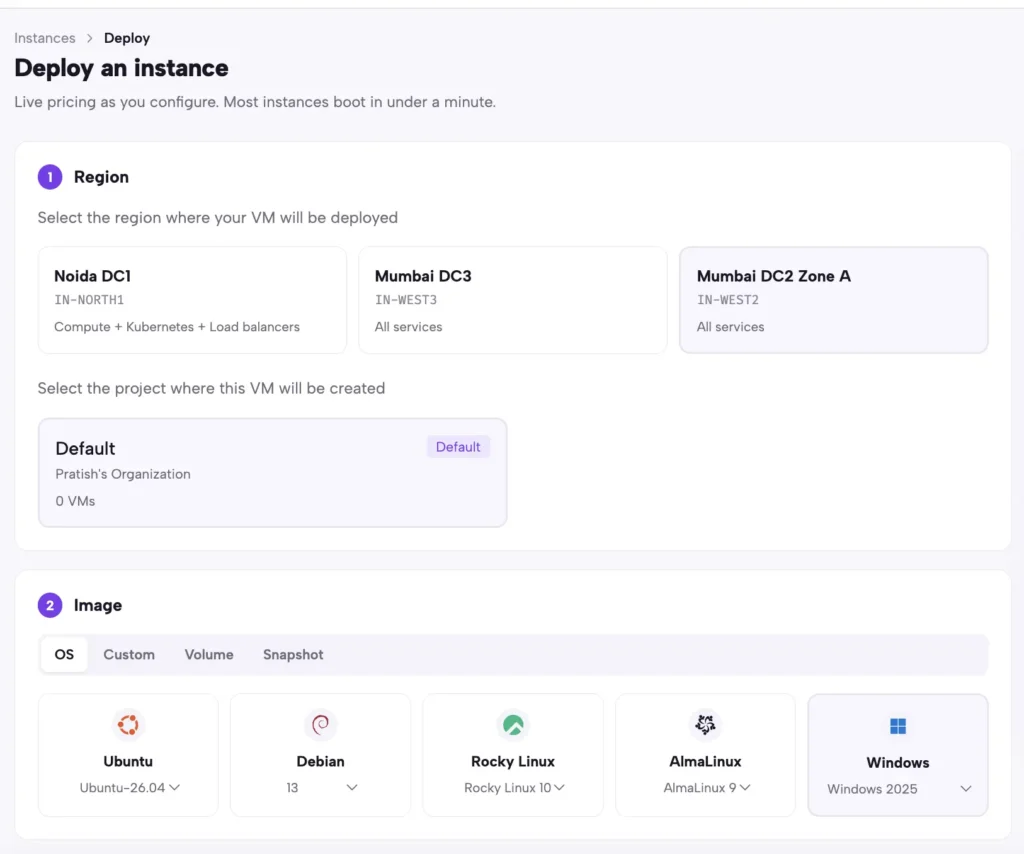
- Select the region
- Image → Windows
Step 3:
(Scroll down)
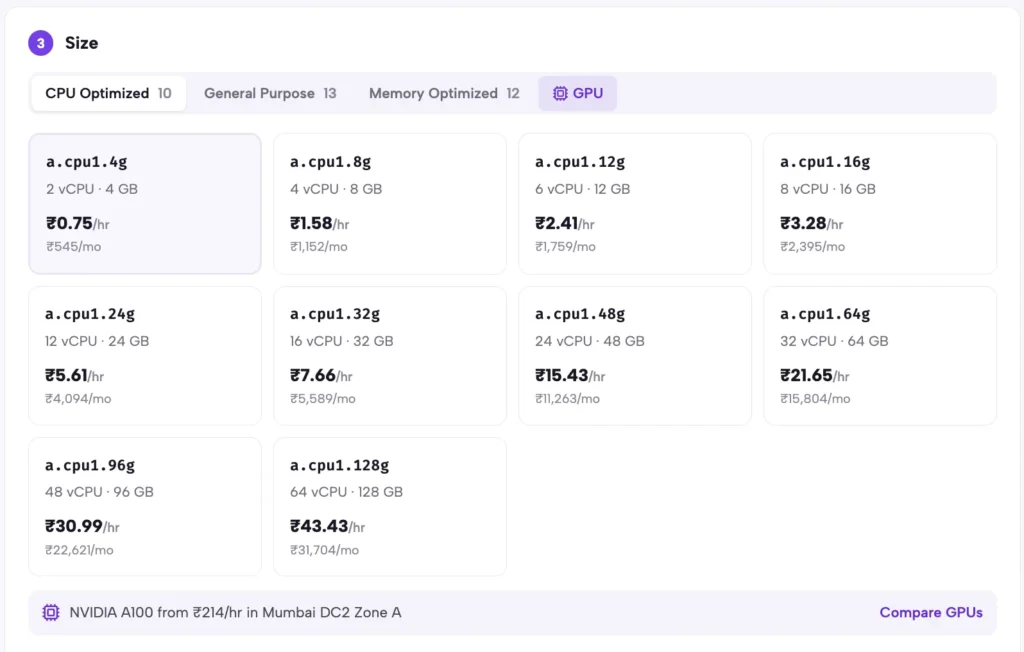
1. Select the size you want
You can choose between:
- CPU optimized
- General purpose
- Memory optimized
With multiple options and the pricing shown clearly inside the portal.
(Scroll down)
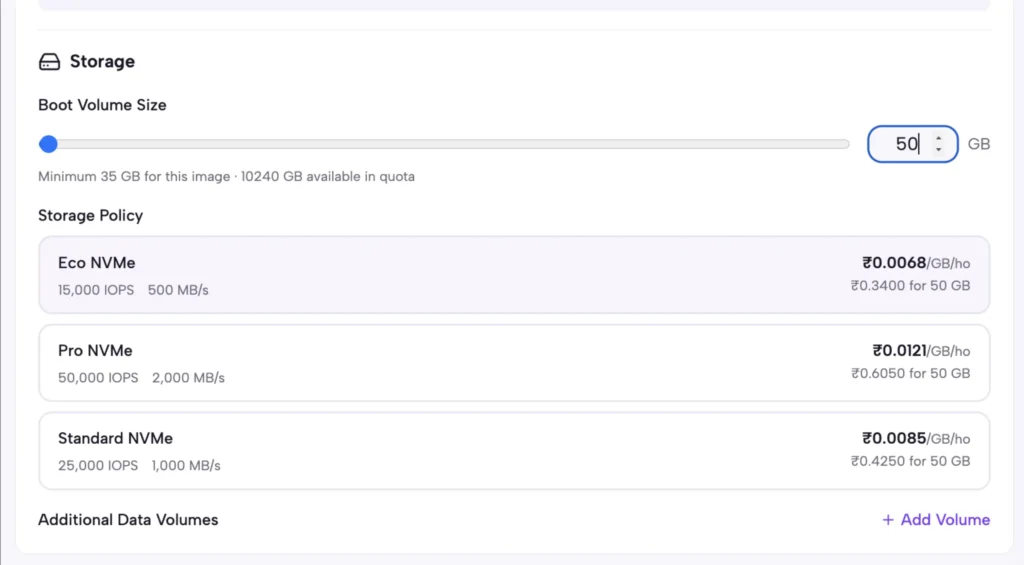
2. Drag the bar as per your storage requirement and choose between ECO, Pro and Standard NVMe storage.
Step 3:
(scroll down)
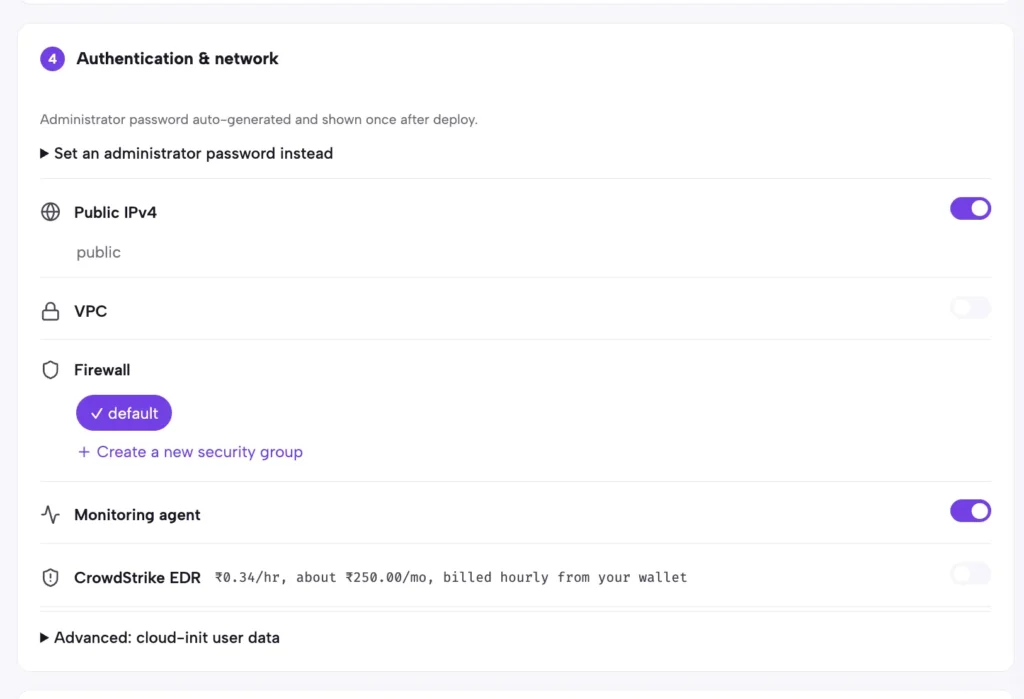
- Public IPv4 is already on, you can click on the toggle if you don’t want it.
- Set-up your VPS if you want one.
- Firewall is free by default
- Toggle on the “Monitoring agent”. It will monitor your VM usage and the agent will provide you with your usage so you can make the optimal use of your VM. This is completely FREE.
- If you want CrowdStrike EDR, you can toggle it on as well, Pricing for the same is mentioned below.
Step 4:
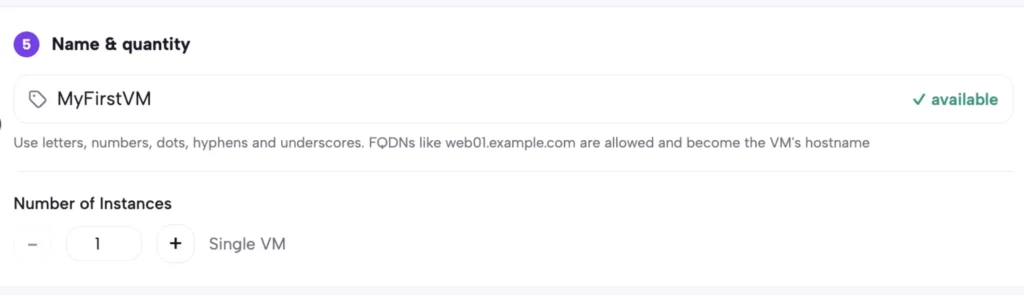
Finally, name your VM, add your quantity and your VM set-up is done.
Step 5:
On the right hand side of the dashboard you will see these options:
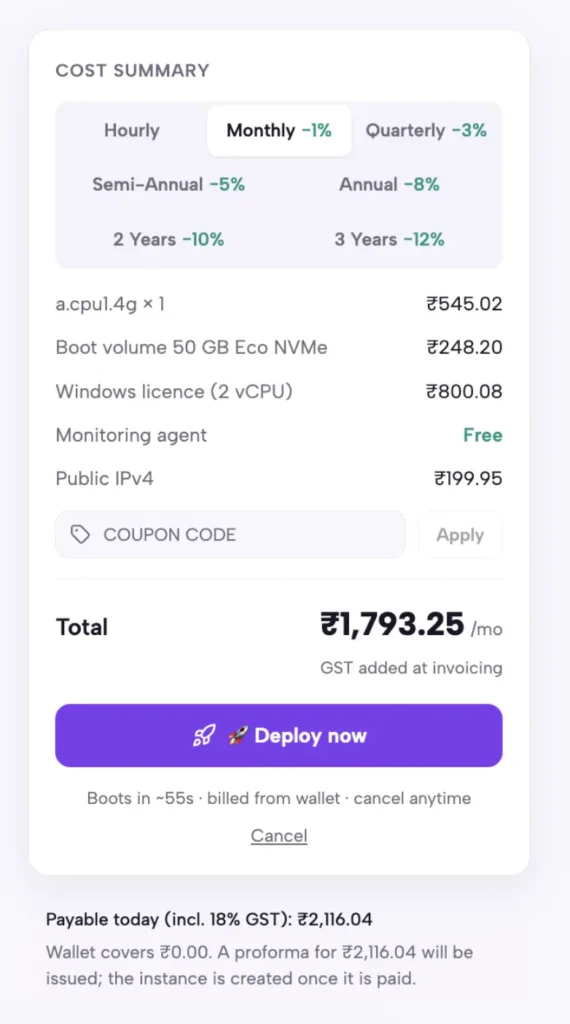
Select your payment method: Hourly, monthly, quarterly, etc.
You can see the pricing and discounts on each payment method and complete details of what you will be paying for and how much.
Once done, you can click the “Deploy now” button.
Congratulations, you have successfully deployed a Windows VM via CloudPe. It is that simple.
Does Windows have a virtual machine built in?
Yes, through Hyper-V. Hyper-V is Microsoft’s built-in hypervisor, included with Windows 11 Pro, Enterprise, and Education editions, and with Windows Server.
It is not included in Windows 11 Home. If you’re running Home edition, you’ll need VirtualBox or another third-party hypervisor instead.
To enable Hyper-V on a supported edition, open Turn Windows features on or off from the Start menu, check the Hyper-V box, and restart your computer. Hyper-V also needs hardware virtualization enabled in your BIOS, the same prerequisite as any other hypervisor.
What is replacing Hyper-V?
Nothing is replacing Hyper-V outright. It’s still an actively developed, supported part of Windows Server 2025 and Windows 11. Microsoft hasn’t deprecated the technology itself.
What has changed is the standalone, free Hyper-V Server product line, which ended after the 2019 release. Microsoft didn’t release a Hyper-V Server 2022 or 2025 version.
Microsoft’s broader strategic direction is also shifting toward Azure Local (formerly Azure Stack HCI), a hyperconverged platform that builds on Hyper-V but connects it to Azure’s cloud management tools. For most individual users running a local Windows VM, this shift doesn’t change anything. It matters more for enterprises planning long-term, on-premises virtualization strategy.
Use cases for Windows virtual machines
1. Software testing:
Test new software, updates, or configurations in an isolated environment before rolling them out to your main system.
2. Running legacy software:
Some older applications only work on older Windows versions. A VM lets you run Windows 7 or 10 for that one piece of software, without keeping an old physical machine around.
3. Cross-platform compatibility:
Run Windows-only software on a Mac or Linux machine, without needing a second physical computer.
4. Development and QA environments:
Developers use Windows VMs to test how applications behave across different Windows versions and configurations.
5. Server hosting:
Businesses run Windows Server VMs to host applications, databases, or websites, often on cloud infrastructure rather than physical hardware.
Benefits of using a Windows virtual machine
- Cost-effective: One physical machine can run multiple VMs, each configured differently, instead of buying separate hardware for each use case.
- Isolation and security: A VM is sandboxed from your main operating system. If something goes wrong inside the VM, malware, a bad update, risky software, your host system stays unaffected.
- No dual-boot required: You don’t have to choose one operating system at startup. Run Windows and your host OS at the same time, side by side.
- Snapshots and rollback: Most hypervisors let you save the exact state of a VM and roll back to it later. This makes testing safer, since you can undo changes instantly instead of reinstalling from scratch.
Windows VM on Mac vs Windows vs Linux host
On a Mac:
Apple Silicon Macs (M1 and later) can run Windows 11 for ARM through Parallels Desktop or VirtualBox, though not every x86-only application will run well. Intel Macs have more hypervisor options, including VMware Fusion.
On Windows:
You have the most choice here. VirtualBox and Hyper-V both run natively, and Hyper-V’s integration with Windows makes it a strong default if your edition supports it.
On Linux:
VirtualBox and QEMU/KVM are the common choices. KVM, built into the Linux kernel, tends to offer the best performance since it’s closer to the hardware.
Read: Linux vs Windows Virtual Machine
Local VM vs cloud VM: which should you use?
A local VM makes sense when your hardware can comfortably spare the RAM, CPU, and storage a VM needs, and you only need to access it from one device. It’s free, it’s fast to set up, and you’re not paying anyone for compute time.
A cloud VM makes sense once any of that stops being true. If your laptop doesn’t have RAM to spare, if you need the VM running 24/7, or if you need to access it from multiple locations or devices, a cloud-hosted VM removes the hardware ceiling entirely. You pay for what you use, and scaling up doesn’t mean buying new hardware.
CloudPe’s Windows VMs start at Rs. 930 per month, with pay-as-you-go pricing and 99.9% uptime SLA, so you’re not committing to hardware you might outgrow in a month.
Read: VPS vs Cloud VM
Frequently Asked Questions
Is a Windows virtual machine free?
The hypervisor software can be free, VirtualBox and Hyper-V cost nothing. The Windows license running inside the VM is not free unless you already own one or use a trial version.
Can I get a VM for free?
Yes. VirtualBox is free and open-source for local use. Most cloud providers also offer free tiers or trial credits for a limited time, though ongoing use is paid.
Does Windows have a virtual machine built in?
Yes, Hyper-V, but only on Windows 11 Pro, Enterprise, and Education editions, not Home.
What is replacing Hyper-V?
Nothing replaces it outright. It’s still supported and developed. Microsoft’s strategic focus is shifting toward Azure Local for enterprise hyperconverged infrastructure, but Hyper-V itself remains available.
Can I run a Windows VM on a Mac?
Yes, through Parallels Desktop or VirtualBox. Apple Silicon Macs run Windows 11 for ARM; Intel Macs have more hypervisor options.
How much RAM do I need for a Windows 11 VM?
4 GB is the minimum, but 8 GB is recommended for a usable experience, especially if you’re running more than basic apps.
Can I use a VM for gaming?
You can, but expect reduced performance compared to running games natively, since GPU passthrough and virtualization overhead both cost you frame rate.
Is it legal to run Windows in a VM?
Yes, as long as you have a valid Windows license for the copy you’re running. Running an unlicensed copy of Windows is not legal, whether it’s in a VM or not.