A VM crashes mid-update. A finance team deletes the wrong folder. A whole data centre goes dark during a regional outage. Each of these needs a different fix. Snapshots, backups, and disaster recovery sound similar, but they solve separate problems, and mixing them up is one of the fastest ways to lose data you thought was protected.
This guide breaks down what each one actually does, where they overlap, and how to put them together into a disaster recovery plan that covers every scenario, not just the easy ones.
What is a VM snapshot?
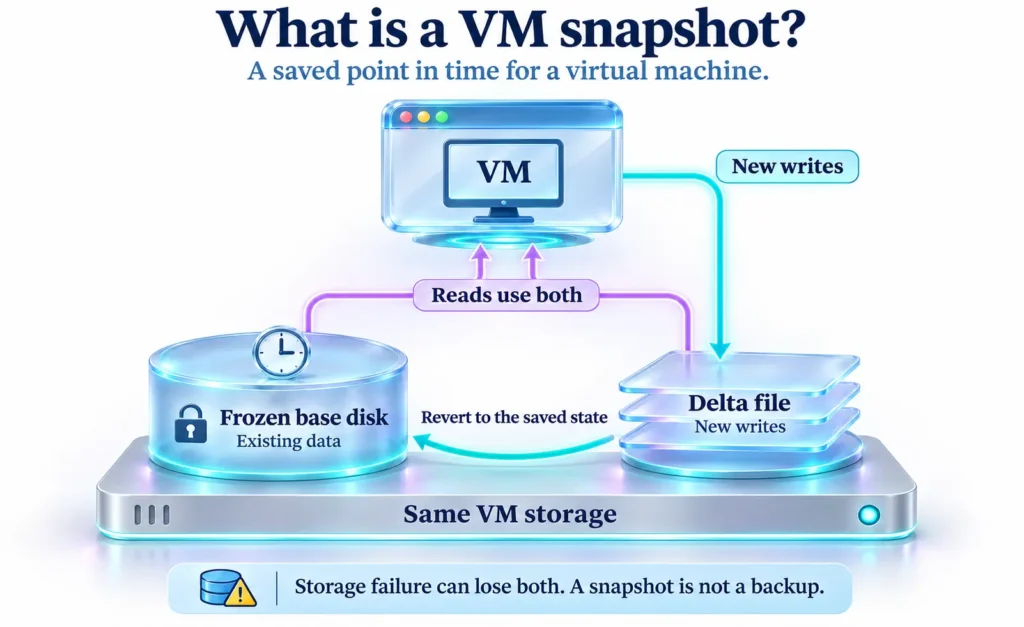
A VM snapshot is a point-in-time copy of a virtual machine’s state: its disk contents, configuration, and optionally its memory. When you take a snapshot, the hypervisor doesn’t touch the original virtual disk. Instead, it freezes that disk as read-only and creates a new “delta” file. Every write from that point on goes into the delta file, while reads pull from both the original disk and the delta.
This is why snapshots are fast to create. The hypervisor isn’t copying gigabytes of data anywhere; it’s just redirecting where new changes get written. Reverting a snapshot means discarding the delta file and going back to the frozen original disk.
The catch is that a snapshot almost always lives on the same storage as the VM it belongs to. If that storage fails, the snapshot fails with it. Snapshots also chain: take three snapshots in a row, and the VM is reading through three delta layers to reconstruct its current state, which slows things down the longer a chain sits unmerged.
When should you use VM snapshots?
Snapshots earn their keep in short windows around a specific risky action:
- Before a software update or patch, so you can roll back in seconds if it breaks something.
- Before a configuration change to the OS, application, or network settings.
- During testing, where you want to try something and discard it cleanly afterward.
What snapshots are not good for is long-term protection. They’re not an independent copy of your data. They depend on the original VM’s storage, they degrade performance the longer they sit, and most hypervisor vendors recommend keeping them active for hours or days, not weeks. If someone tells you a snapshot is their backup strategy, that’s a gap worth flagging.
What is a VM backup?
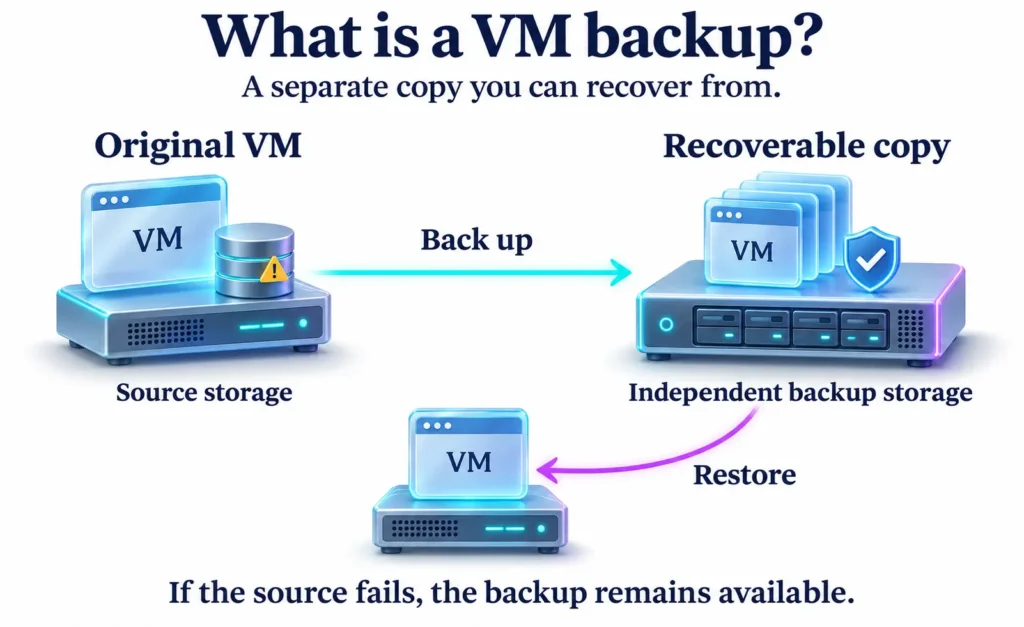
A VM backup is a separate, recoverable copy of a virtual machine’s data, stored independently of the original. Unlike a snapshot, a proper backup doesn’t rely on the source VM’s storage staying intact. If the original VM, its disk, or even the whole host disappears, the backup still exists elsewhere.
Types of VM backups
- Full backup: a complete copy of the VM’s data. Simple to restore from, but the slowest and largest to create each time.
- Incremental backup: only the data that changed since the last backup (of any type). Fast to create, but a restore has to reassemble the full chain in order.
- Differential backup: only the data that changed since the last full backup. Restores are quicker than incremental because you only need the full backup plus the latest differential, but each differential grows larger over time.
When should you use VM backups?
Backups cover the scenarios snapshots can’t:
- Accidental deletion of files, folders, or entire VMs.
- File or database corruption that isn’t caught immediately.
- Ransomware or malware recovery, especially when backups are stored immutably or offline so they can’t be encrypted along with production data.
- Long-term retention, where compliance or internal policy requires keeping recoverable copies for weeks, months, or years.
What is disaster recovery?
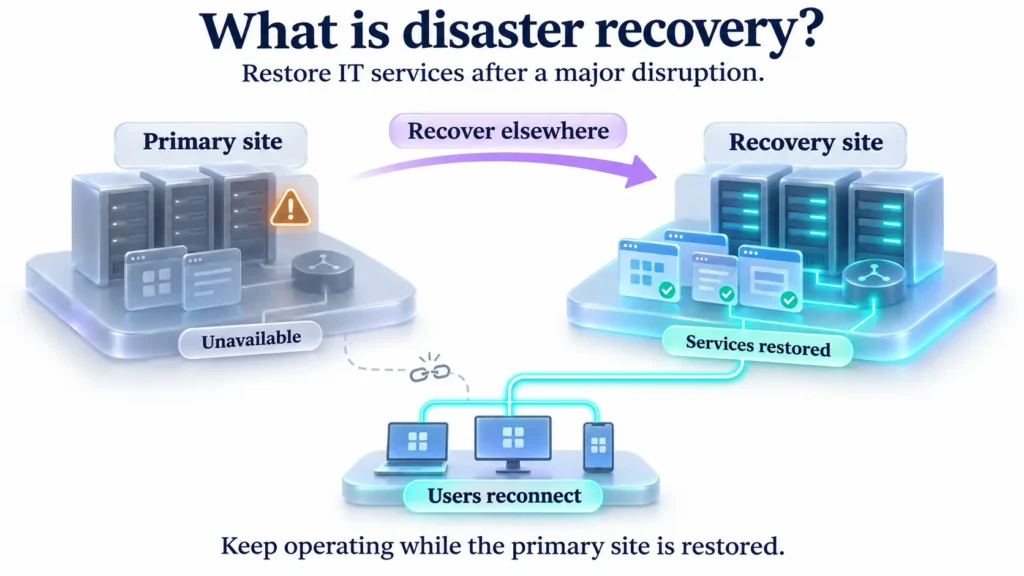
Disaster recovery is the process of restoring IT services, applications, and infrastructure after a major disruption, think a data centre outage, a regional network failure, or a large-scale security incident that takes core systems offline. It’s broader than restoring a single VM or file. Disaster recovery assumes that the infrastructure you normally run on might not be available at all, and plans for running somewhere else until it is.
What is a disaster recovery plan (DRP)?
A disaster recovery plan is the documented procedure that turns disaster recovery from a concept into something a team can actually execute under pressure. A solid DRP typically covers:
- Which systems and applications are critical, and in what order they need to come back online.
- Where recovery will happen (a secondary site, a different cloud region, or a different provider entirely).
- Who is responsible for each recovery step, and how they’re contacted.
- The exact technical steps to restore each system, written clearly enough that someone other than the person who wrote them could follow it at 3 am.
Without a written plan, disaster recovery becomes a scramble. With one, it becomes a checklist.
Understanding RTO and RPO
Two numbers define how good a disaster recovery plan is:
- Recovery Time Objective (RTO): how long the business can tolerate a system being down. If an online store’s RTO is 2 hours, the DRP needs to get it back up within that window.
- Recovery Point Objective (RPO): how much data loss is acceptable, measured in time. If a database’s RPO is 15 minutes, backups or replication need to run often enough that, worst case, only 15 minutes of transactions are lost.
A business application with a 4-hour RTO and a 1-hour RPO needs a different backup and recovery setup than one with a 15-minute RTO and a 5-minute RPO. The tighter the numbers, the more infrastructure and automation the plan requires, and the more it costs to maintain.
Build a backup and disaster recovery setup.
Contact CloudPeVM snapshots vs. backups vs. disaster recovery: key differences
Here’s the short version: snapshots handle quick rollbacks, backups handle data loss, and disaster recovery handles the loss of entire systems or sites. They’re not competing approaches. They’re different layers of the same protection strategy.
| Feature | Snapshot | Backup | Disaster recovery |
| Main purpose | Quick rollback | Data restoration | Service recovery |
| Typical scope | VM state | VM and data copies | Applications and infrastructure |
| Independent copy | Usually no | Yes, when properly configured | Depends on architecture |
| Recovery speed | Often fast | Varies | Depends on RTO and design |
| Major site failure | Insufficient alone | Can support restoration | Designed to address it |
| Best suited for | Short-term changes | Data protection | Major disruptions |
A snapshot can’t save you if the storage array it sits on fails. A backup can’t bring your application back online if the entire region it’s hosted in goes dark, unless it’s been replicated somewhere else as part of a disaster recovery plan. Each one plugs a gap the others leave open.
When should you use snapshots, backups, or disaster recovery?
Scenario 1: A software update breaks your VM
You’re patching an application server. Before you start, you take a snapshot. The update corrupts a config file, and the service won’t start. You revert the snapshot, and within a minute or two, the VM is back to exactly where it was before the update. No need to touch a separate backup system. This is the textbook snapshot use case: fast, local, short-lived.
Scenario 2: Important business data is accidentally deleted
Someone on the finance team deletes a shared folder of invoices, and nobody notices until a week later. A snapshot wouldn’t help here. Snapshots that old have likely already been deleted or merged back into the base disk, and even if one existed, reverting it would also undo every other change made since. This calls for a backup: restore just the deleted folder from a backup taken before the deletion, without touching anything else on the VM.
Scenario 3: Your entire data centre goes offline
A power failure, a fire, or a regional network outage takes down the facility hosting your production environment. Snapshots are gone with the storage they lived on. Even backups stored in the same facility may be unreachable. This is what disaster recovery is for: failing over to a secondary site or cloud region, using replicated infrastructure and recovery procedures that were set up and tested in advance. Nothing short of a DR plan handles a failure at this scale.
How to create a disaster recovery plan: 5 essential steps
Step 1: Identify critical systems and business risks
Start with an inventory. List every application, database, and service, then rank them by how much damage an outage would cause. A customer-facing payment system and an internal wiki don’t need the same level of protection.
Step 2: Define RTO and RPO requirements
For each critical system, decide how long it can be down (RTO) and how much data it can afford to lose (RPO). These numbers drive every technical decision that follows, so get them from the people who actually feel the pain of downtime, not just IT.
Step 3: Choose backup and disaster recovery solutions
Match your RTO and RPO targets to the right tools. A system with a tight RPO might need continuous replication. One with a looser RTO might be fine with nightly backups and a documented manual failover. This is also where you decide on secondary infrastructure, whether that’s a second data centre, a different cloud region, or a different provider.
Step 4: Document recovery procedures and responsibilities
Write down the exact steps to recover each system. Name the person or team responsible for each step, and make sure they have a way to be reached outside normal channels, because the normal channels might be down too.
Step 5: Test and update your disaster recovery plan
A DRP that’s never been tested is a guess, not a plan. Run drills on a schedule, fix whatever breaks during the drill, and update the plan whenever infrastructure, staff, or critical systems change.
Simple disaster recovery plan example for a business
Take a small business running its website, application, and database on virtual machines.
| System | Risk | Recovery objective | Backup strategy | Recovery action | Responsible team |
| Website VM | Hosting provider outage | RTO: 1 hour | Daily full backup | Restore VM at secondary provider | Infrastructure |
| Application VM | Server failure | RTO: 2 hours, RPO: 1 hour | Hourly incremental backup | Redeploy from latest backup | DevOps |
| Database VM | Data corruption or regional outage | RTO: 4 hours, RPO: 15 minutes | Continuous replication to secondary region | Fail over to replica, verify data integrity | Database admin |
What should an IT disaster recovery plan PDF include?
A reusable, written DRP should cover:
- A full infrastructure inventory: VMs, storage, networking, and which provider or region each lives in.
- Contact details for everyone with a recovery responsibility, plus backup contacts.
- Step-by-step recovery procedures for each critical system.
- A record of past test results, including what failed and what was fixed.
Keeping this as a living document, not a one-time PDF that sits unopened, is what makes it useful when an actual incident hits.
Disaster recovery plan vs. business continuity plan
A disaster recovery plan restores IT infrastructure: servers, applications, data. A business continuity plan is broader. It covers how the entire business keeps functioning during a disruption, including things a DRP doesn’t touch, like staffing, customer communication, and alternate physical work locations.
Business continuity and disaster recovery plan example
An e-commerce company suffers an outage that takes its checkout system offline. The disaster recovery plan handles getting the application and database back online at a secondary site. The business continuity plan handles everything around that: customer support messaging to explain the outage, a manual order-taking process if checkout stays down longer than expected, and coordination with the warehouse team so fulfilment doesn’t stall. The DRP restores the systems. The BCP keeps the business running while that happens.
Best practices for protecting your virtual machines
- Follow the 3-2-1 rule. Keep at least 3 copies of your data, on 2 different types of storage, with 1 copy off-site.
- Use off-site or immutable backups, so a ransomware attack or local disaster can’t destroy your only recoverable copy along with production data.
- Automate backup schedules rather than relying on someone remembering to run them manually.
- Restrict access to backup and snapshot systems, since they’re a common ransomware target in their own right.
- Test recovery regularly, not just backup creation. A backup you’ve never restored from is unverified.
- Monitor backup jobs, so a failed or skipped backup gets flagged immediately instead of being discovered during an actual recovery.
A natural disaster recovery plan also needs geographic separation. If your primary and secondary sites are in the same city, a regional outage, flood, or earthquake can take both out together. Plan recovery infrastructure far enough away that it’s unlikely to be hit by the same event.
| Build a backup and disaster recovery strategy suited to your infrastructure. | Try CloudPe |
Conclusion
Build a recovery strategy that covers every scenario. Snapshots give you a fast rollback for short-term, low-risk changes. Backups preserve recoverable copies of your data for the problems snapshots can’t fix: deletion, corruption, and long-term retention. Disaster recovery planning covers what happens when the infrastructure itself goes down, not just the data on it.
None of the three replaces the others. A recovery strategy that only has one of them has a gap, and gaps tend to show up at the worst possible time. If you’re running VMs on CloudPe and want to talk through backup schedules, replication, or building out a disaster recovery setup across regions, reach out to the team.
Frequently Asked Questions
1. What are the 5 steps of disaster recovery planning?
Identify critical systems and risks, define RTO and RPO targets, choose the right backup and DR tools, document recovery procedures and responsibilities, then test and update the plan regularly.
2. How do I write a disaster recovery plan?
Start with an inventory of critical systems, set recovery targets for each, match them to backup and replication tools, write detailed step-by-step recovery procedures, and test the plan on a regular schedule.
3. What is the DRP process?
The DRP process covers planning (identifying risks and setting objectives), implementation (setting up backup and recovery tools), documentation (writing procedures), and ongoing testing to keep the plan current.
4. What are the 4 C’s of disaster recovery?
There’s no single universally agreed definition of the “4 C’s” across the industry. Some frameworks use it to mean communication, coordination, continuity, and control, but always check which specific framework a source is referencing before applying it.
5. Can VM snapshots replace backups?
No. Snapshots typically depend on the original VM’s storage and aren’t designed for long-term retention. A backup is an independent, recoverable copy; a snapshot is a short-term rollback point.
6. Is disaster recovery the same as backup?
No. A backup protects data. Disaster recovery restores entire systems and services after a major disruption, often involving a secondary site or infrastructure, not just a copy of files.