An ageing server, a growing user base, and an application that cannot afford downtime. This is a familiar situation for businesses running Windows-based workloads.
As applications grow, the infrastructure supporting them must keep up. A physical server that once handled everyday operations may eventually need more processing power, memory, or storage. Upgrading it can involve additional hardware investment, maintenance, and deployment time.
For IT teams, the challenge is not just keeping applications running. It is ensuring that infrastructure can support changing workloads without adding unnecessary operational complexity.
This is one reason businesses are evaluating virtual machines in cloud computing. Cloud VMs allow organizations to run Windows environments on virtualised infrastructure, provision resources as required, and reduce their dependence on physical server hardware.
But what makes cloud VMs suitable for Windows workloads? And what should businesses evaluate before making the move?
This article explains why businesses are making the shift, the benefits and challenges involved, and what to consider when choosing a cloud VM for Windows workloads.
What is a Windows workload?
A Windows workload is any application or system that runs on Windows, like business software, databases, or internal tools. Think Windows Server environments, Active Directory, SQL Server databases, .NET applications, and Remote Desktop Services. Moving it “to the cloud” just means running it on a virtual machine hosted online instead of on a physical server in-house.
What are virtual machines in cloud computing?
A virtual machine (VM) is a software-based computer that runs its own operating system and applications using resources allocated from a physical server.
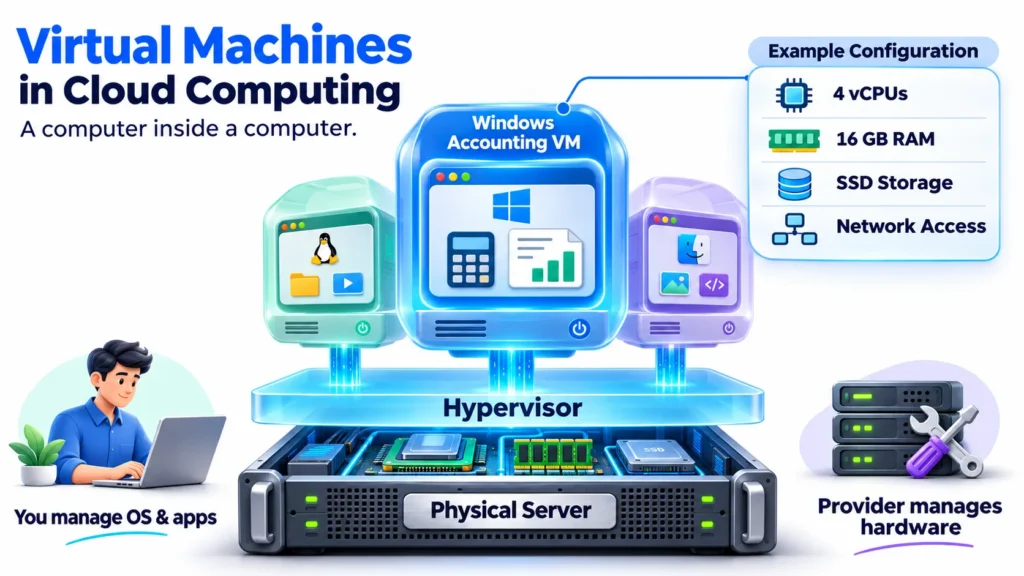
In simple words, a virtual machine works like a computer inside another computer. It has its own virtual CPU, RAM, storage, and network interface, allowing it to operate independently of other VMs running on the same physical hardware.
In cloud computing, providers use virtualisation technology to divide physical server resources into multiple virtual machines. Businesses can then rent these resources instead of purchasing and maintaining physical servers.
Virtual machine example in cloud computing:
Consider a business that needs a Windows Server environment to run its internal accounting application. Instead of purchasing a physical server, it can provision a cloud VM with:
- Windows Server as the guest operating system
- 4 vCPUs for processing
- 16 GB RAM for application operations
- SSD storage for the operating system and application data
- Network connectivity for authorised users
The application runs inside this VM, while the cloud provider manages the underlying physical infrastructure.
Why businesses are moving Windows workloads to cloud VMs
Businesses are reconsidering how they host Windows applications as infrastructure requirements change. Physical servers can support these workloads, but their fixed capacity and maintenance requirements may become limiting as operations grow.
Several factors are encouraging the shift towards cloud-based virtual machines.
- Ageing physical infrastructure: Older servers may struggle with growing application demands. Replacing hardware also requires additional investment and deployment planning.
- Limited resource flexibility: Fixed server configurations can leave businesses with insufficient capacity during peak periods or unused resources during quieter periods.
- Hardware maintenance: Physical infrastructure requires regular maintenance, upgrades, power, cooling, and hardware monitoring.
- Changing application requirements: New software versions, development environments, and business applications may require additional computing resources.
- Remote infrastructure access: Distributed teams need secure ways to access applications and server environments from different locations.
- Infrastructure availability: Businesses need reliable backup and recovery arrangements to reduce the impact of hardware or application failures.
Cloud VMs address several of these requirements by separating workloads from the physical server. Businesses can provision computing resources based on application needs and adjust configurations as those needs change.
Give Windows workloads the flexibility to scale with business needs.
Try CloudPeOn-premises Windows servers vs. cloud virtual machines
The main difference between on-premises servers and cloud VMs is how the underlying infrastructure is provisioned, maintained, and paid for.
| Factor | On-premises Windows server | Cloud virtual machine |
| Hardware | Purchased and maintained by the business | Physical infrastructure managed by the provider |
| Deployment | Requires hardware procurement and setup | Can be provisioned through a cloud platform |
| Resource scaling | Often requires hardware upgrades | Resources can be resized, subject to availability |
| Maintenance | Internal IT team manages physical hardware | Provider manages the physical infrastructure |
| Cost model | Hardware investment and ongoing operating costs | Usage-based or committed billing options |
| Remote access | Requires configured network connectivity | Available through configured cloud networking and access controls |
| Recovery | Requires separate backup and recovery planning | Can use provider-supported snapshots, backups, and recovery options |
On-premises servers can still suit businesses that need direct hardware control, specialised equipment, or specific local infrastructure arrangements.
Cloud VMs offer an alternative when businesses want to reduce physical infrastructure responsibilities and provision resources more flexibly. The right choice depends on workload requirements, cost, compliance, and operational preferences.
Windows workloads that can run on cloud virtual machines
Cloud virtual machines can support several types of Windows-based business applications. The required configuration depends on application architecture, user concurrency, database size, and processing requirements.
Common examples include:
1. Windows-based ERP and CRM applications
Enterprise resource planning and customer relationship management applications handle business processes such as inventory, finance, sales, and customer records. A Windows VM can host applications that require a Windows Server environment.
2. Microsoft SQL Server workloads
Businesses can deploy SQL Server on Windows VMs for database-driven applications. CPU, memory, and storage performance need to match the database’s transaction volume and query requirements.
3. Accounting and business management software
Applications used for accounting, payroll, invoicing, and internal administration can run on Windows-based server environments, depending on their compatibility and licensing requirements.
4. Remote Desktop environments
Businesses can configure Windows servers to provide remote access to applications and desktops. The setup needs appropriate user licensing, access controls, and security configurations.
5. Development and testing environments
Development teams can create separate Windows VMs to test application updates, software releases, and configurations without affecting production environments.
6. Legacy Windows applications
Some older business applications depend on specific Windows versions or configurations. Virtual machines can provide an environment to continue running compatible applications while businesses plan upgrades or modernisation.
Not every Windows application is suitable for direct migration. Applications with hardware dependencies, unsupported operating systems, or specialised licensing requirements need additional assessment.
Types of virtual machines in cloud computing
Virtual machines can be classified by how they virtualise computing environments and by the resources they are designed to provide.
Understanding these categories helps businesses select an appropriate VM for their workloads.
1. System virtual machines
A system VM provides a complete virtualised computer environment. It runs its own operating system and applications using allocated virtual hardware resources.
For example, a Windows Server VM running an ERP application is a system virtual machine. It behaves like an independent server even though it shares physical hardware with other VMs.
Most cloud infrastructure providers offer this type of virtual machine.
2. Process virtual machines
A process VM creates an environment for running a specific application or process rather than an entire operating system.
The Java Virtual Machine (JVM) is a common example. It allows Java applications to run across different operating systems through a managed runtime environment.
For businesses running Windows workloads, system VMs are generally the more relevant category.
Common cloud VM configurations
Cloud providers also offer VM configurations based on workload requirements:
- General-purpose VMs: Balance CPU, memory, and networking for everyday business applications and web servers.
- Compute-optimised VMs: Provide higher CPU capacity for processing-intensive applications.
- Memory-optimised VMs: Allocate more RAM for databases and memory-intensive applications.
- GPU-enabled VMs: Include GPU resources for AI, machine learning, visualisation, and other accelerated workloads.
These are resource-based VM categories rather than separate technical types of virtual machines.
Virtual machine architecture in cloud computing
Virtual machine architecture describes how physical hardware resources are abstracted and allocated to independent virtual environments.
A hypervisor manages this process. It creates and runs VMs while allocating resources such as CPU, memory, storage, and networking.
The main components include:
- Physical host: The underlying server containing physical processors, memory, storage, and network interfaces.
- Hypervisor: The software layer that creates and manages virtual machines and allocates physical resources.
- Virtual CPU (vCPU): A share of the host’s processing capacity assigned to a VM.
- Virtual memory: RAM allocated to the VM for running its operating system and applications.
- Virtual storage: Disk capacity presented to the VM for its operating system, applications, and data.
- Virtual network interface: Connects the VM to configured networks and enables communication with other systems.
- Guest operating system: The operating system installed inside the VM, such as Windows Server.
A typical cloud VM architecture works as follows:
- The physical host provides the underlying computing resources.
- The hypervisor abstracts these resources into virtual environments.
- Each VM receives an allocated CPU, memory, storage, and network configuration.
- The guest operating system runs independently inside each VM.
- Applications use the resources assigned to their respective environments.
This architecture allows multiple virtual machines to run on one physical server while maintaining separation between their operating systems and workloads.
Benefits of running Windows workloads on cloud VMs
Moving Windows workloads to cloud virtual machines changes how businesses provision and manage their infrastructure. The benefits extend beyond eliminating physical hardware purchases.
Reduced hardware investment
Businesses do not need to purchase physical servers for every new workload. They can provision virtual machines using the provider’s existing infrastructure.
This can reduce upfront capital expenditure and the need to manage hardware procurement, installation, and replacement.
Flexible resource allocation
Cloud VMs allow businesses to select CPU, RAM, and storage configurations based on application requirements.
If a Windows application needs more memory or processing capacity, the VM can be resized where the provider supports it. This helps businesses respond to changing resource demands without replacing physical servers.
Faster environment deployment
Setting up a physical server can involve procurement, installation, operating system configuration, and network setup.
Cloud VMs simplify provisioning through a management interface or API. Teams can deploy additional Windows environments without waiting for new hardware.
Support for existing applications
Businesses can continue running compatible Windows-based applications in a familiar operating system environment.
This can be useful when applications cannot be immediately rewritten or migrated to a different architecture.
Improved infrastructure recovery options
Cloud environments can support snapshots, backups, and recovery configurations.
These options help businesses restore systems after accidental changes, data corruption, or infrastructure failures. However, backup frequency, retention, and recovery procedures still need to be configured and tested.
Easier remote infrastructure management
IT teams can administer Windows VMs remotely through approved management tools and secure access methods.
This reduces the need for physical access to the server and supports teams managing infrastructure across multiple locations.
More flexible cost models
Cloud providers may offer hourly, monthly, or longer-term billing options. Businesses can select a model based on how consistently a workload needs to run.
However, the total cost should include operating system licensing, storage, backups, network usage, and support—not just the VM’s compute price.
Get the compute resources your applications need, when they need them.
Try CloudPeChallenges of moving Windows workloads to cloud VMs
Cloud VMs provide flexibility, but migrating Windows workloads introduces technical, financial, and operational considerations.
Businesses should evaluate these challenges before moving production applications.
Windows Server licensing
Windows Server and business applications may have licensing requirements that affect where and how they can run.
Existing licences may not automatically transfer to every cloud environment. Businesses should confirm licensing eligibility, provider terms, edition requirements, and any additional costs before deployment.
Application compatibility
Older Windows applications may depend on specific operating system versions, libraries, drivers, or configurations.
Moving them to a different environment without testing can cause application errors or performance issues.
Migration downtime
Production applications and databases need careful planning during migration. Data transfer, synchronisation, application testing, and final cutover can affect service availability.
The required downtime depends on the application architecture and migration method.
Performance differences
A VM’s performance depends on its allocated resources and the underlying infrastructure.
Insufficient vCPU, RAM, storage IOPS, or network capacity can affect application response times. Businesses should benchmark workloads rather than selecting configurations based only on physical server specifications.
Security and access management
Moving a Windows server to the cloud does not automatically secure it.
Remote Desktop access, administrator permissions, firewall rules, operating system updates, and endpoint protection need to be configured and maintained.
Unexpected infrastructure costs
Cloud billing can increase when businesses provision oversized VMs, leave unused resources running, or overlook storage, backup, and network charges.
Resource monitoring and regular cost reviews help identify unnecessary expenditure.
Changes to IT operations
IT teams may need to adapt their existing processes for cloud provisioning, monitoring, access management, backups, and incident response.
The transition can require new operational skills and clearly defined responsibilities between the provider and the customer.
How to address common Windows VM migration challenges
A planned migration helps businesses reduce compatibility issues, downtime, and unexpected costs.
| Challenge | Recommended approach |
| Licensing complexity | Verify Windows Server and application licensing before deployment. |
| Application compatibility | Test applications on the target Windows environment. |
| Migration downtime | Plan data synchronisation, cutover windows, and rollback procedures. |
| Performance concerns | Benchmark workloads and allocate suitable vCPU, RAM, and storage. |
| Security risks | Configure restricted remote access, firewalls, patching, and administrator permissions. |
| Unexpected costs | Monitor resource utilisation and resize VMs when requirements change. |
| Operational changes | Define monitoring, backup, and infrastructure management responsibilities. |
A pilot migration can also help identify issues before production workloads move. Start with a non-critical Windows application, validate its functionality, and use the findings to plan the remaining migration.
What to evaluate before moving Windows workloads to cloud VMs
Not every physical Windows server is ready for direct migration. Businesses should assess the existing environment and target infrastructure before selecting a cloud VM.
Consider the following:
- Operating system version: Check whether the current Windows Server version is supported and whether it needs an upgrade.
- Application dependencies: Identify databases, libraries, drivers, integrations, and third-party services used by the application.
- Licensing requirements: Confirm Windows Server and application licensing terms for the target environment.
- Resource utilisation: Review current CPU, memory, and storage consumption to estimate VM requirements.
- Network connectivity: Assess bandwidth, latency, firewall rules, and connectivity between applications and users.
- Data protection: Define backup frequency, retention periods, recovery point objectives (RPO), and recovery time objectives (RTO).
- Security requirements: Review administrator access, encryption, network segmentation, and compliance obligations.
- Migration approach: Decide whether the workload needs a direct move, reconfiguration, or application modernisation.
This assessment helps businesses avoid moving unsuitable workloads or provisioning resources that do not match actual application requirements.
How to choose the right cloud VM configuration
Selecting a cloud VM involves matching its resources to the application’s performance and availability requirements.
A larger configuration does not automatically deliver better value. Businesses should evaluate the workload before choosing the number of vCPUs, memory capacity, and storage.
vCPU allocation
A vCPU represents a virtual processing unit assigned to a VM. It provides access to a share of the underlying physical CPU resources.
For example, a 4 vCPU VM is configured with four virtual CPUs. This does not necessarily mean four dedicated physical processor cores. The actual performance depends on the provider’s CPU allocation and infrastructure design.
Applications with multiple concurrent operations may require more processing capacity than basic internal applications.
RAM requirements
RAM stores the data and instructions that applications need during execution.
Windows Server, databases, and enterprise applications have different memory requirements. A VM with insufficient RAM may experience memory pressure and slower application performance.
Storage capacity and performance
Storage requirements depend on the operating system, application files, databases, and business data.
Businesses should evaluate both storage capacity and performance. SSD or NVMe storage may suit workloads that require faster data access, while the required IOPS and throughput depend on the application’s workload.
Network capacity
Network configuration affects how users and connected applications access the VM.
Businesses should consider bandwidth, latency, private connectivity, firewall rules, and expected concurrent connections.
Windows licensing and operating costs
The VM price may not include every cost associated with running a Windows workload.
Check whether Windows Server licensing is included, whether additional application licences are required, and how storage, backups, networking, and support are billed.
Scaling and resizing options
Workloads can change as businesses add users, deploy new application features, or increase database activity.
Choose a provider that supports suitable VM resizing options and provides clear information about resource availability, pricing, and any restart requirements during configuration changes.
Find the right cloud VM configuration for your business workloads.
Try CloudPeConclusion
Moving Windows workloads to cloud virtual machines allows businesses to run familiar applications without depending entirely on physical server infrastructure.
Cloud VMs offer flexible resource allocation, faster provisioning, and access to infrastructure management and recovery options. However, migration decisions should account for Windows licensing, application compatibility, security, performance, and ongoing costs.
The right approach starts with understanding existing workload requirements. Businesses can then select suitable VM configurations, test applications, and migrate in phases.
Cloud virtual machines are not a universal replacement for physical servers. They are an infrastructure option that helps businesses adapt computing resources to changing application and operational needs.