What is VRAM?
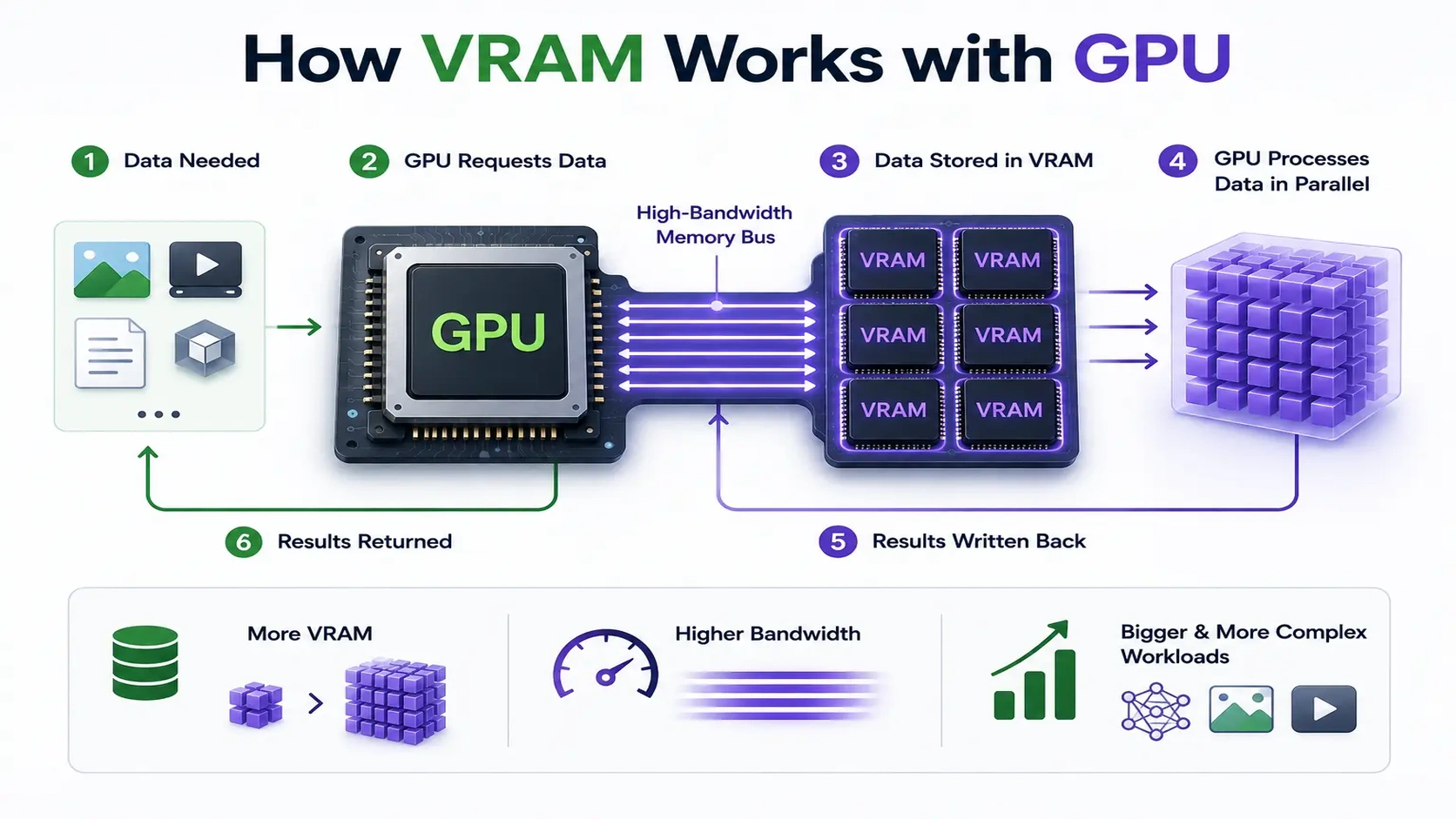
VRAM, or Video RAM, is the dedicated memory built into a GPU. It stores the data the GPU needs immediate access to, like textures and frame buffers for graphics, or model weights and activations for AI workloads, so the GPU isn’t stuck waiting on slower system memory for every calculation.
If the GPU is the engine doing the work, VRAM is the fuel tank sitting right next to it, close enough that the engine never has to wait.
VRAM full form and meaning
VRAM stands for Video Random Access Memory.
The “video” reflects its original purpose of storing image and frame data for rendering graphics to a display. This purpose has expanded significantly. Today, VRAM is just as critical for AI and machine learning, where it holds the massive model weights and intermediate calculations needed during training and inference.
RAM vs VRAM
These two are easy to mix up since both are types of memory, but they serve very different roles:
| RAM | VRAM | |
| Located on | The motherboard, used by the CPU | The GPU itself |
| Used for | General system tasks: OS, apps, background processes | Graphics data and GPU-specific workloads (rendering, AI models) |
| Speed | Fast, but slower than VRAM for GPU tasks | Built for extremely high bandwidth to keep up with the GPU |
A computer needs both. RAM keeps your overall system running smoothly. VRAM is what lets the GPU do its specific job, rendering or heavy computation, without bottlenecking on memory access.
VRAM in GPU: how it runs
VRAM sits physically right next to the GPU chip, connected through a wide, high-bandwidth memory bus. When the GPU needs to run a calculation, it pulls the required data from VRAM at very high speed. The more VRAM a GPU has, and the higher its memory bandwidth, the larger and more complex the workload it can handle without slowing down or running out of space.
What does 4GB VRAM mean
4GB of VRAM means the GPU has 4 gigabytes of dedicated memory to store the data it’s actively working with, textures, frame buffers, or model data. It’s enough for basic gaming at lower settings and light everyday graphics tasks. But it’s a limiting amount for modern AAA games at high resolutions, and far too little for any serious AI or machine learning workload, where even mid-sized models can require far more.
Is 32GB VRAM overkill?
It depends entirely on the workload. For most gaming, 32GB is more than enough, and much of it will sit unused.
For AI work, it’s a different story. 32GB can comfortably run inference on many mid-sized language models and handle demanding creative workloads like video generation or complex 3D rendering.
For training or running larger models, even 32GB fills up fast, which is why data center GPUs built specifically for AI often ship with far more.
Which GPU has 32GB of VRAM
The NVIDIA GeForce RTX 5090 ships with 32GB of GDDR7 VRAM, the highest capacity currently available on a consumer graphics card, roughly double the 24GB in its predecessor, the RTX 4090.
For workloads needing even more headroom, NVIDIA’s RTX PRO 6000 (a workstation and data-center-class card) goes well beyond that, with 96GB of VRAM, built for running larger AI models without hitting memory limits.
How to check VRAM
- Windows: Task Manager → Performance tab → GPU, shows “Dedicated GPU Memory.”
- Mac: Apple menu → About This Mac → System Report → Graphics/Displays.
- Linux: Run nvidia-smi in the terminal for NVIDIA GPUs, which shows total and used VRAM directly.
How to increase VRAM
For a dedicated GPU, VRAM is fixed hardware, soldered onto the graphics card, so it can’t be upgraded or expanded after purchase. The only way to get more VRAM is to use a GPU that has more of it to begin with.
This is one reason renting cloud GPU instances is appealing. Instead of being stuck with whatever VRAM your hardware shipped with, you can choose an instance with the exact VRAM capacity your workload needs, and change it later if your needs grow.
VRAM use cases
- Gaming: Storing textures and frame data for smooth, high-resolution rendering.
- AI training and inference: Holding model weights and computations while a model runs.
- Video editing and 3D rendering: Keeping large project files and assets close to the GPU for fast processing.
- Content generation: Running image and video generation models, which are especially VRAM-hungry.