
1] Goal: Access your CloudPe bucket like a normal drive (E:, F: …) in Windows File Explorer, and upload/download files.
2] Endpoint: s3.in-west2.purestore.io (Port 443, HTTPS)
3] Software: Mountain Duck 5.3.2 for Windows (free trial is enough for testing)
4] Need: Access Key ID, Secret Access Key and Bucket name from your CloudPe console
Add this section to your previous Mountain Duck KB:
Related KB: Managing S3 Resources
Before mounting CloudPe Object Storage on Windows using Mountain Duck, refer to the Managing S3 Resources guide to learn how to create buckets, manage access keys, and upload or download files through the CloudPe console.
Important: two settings must be changed
With default settings, Mountain Duck connects successfully but fails when you open the bucket, upload or download files. To avoid this, please follow Step 3 (Sync mode and driver) and Step 4 (path-style profile) exactly as shown.
Step 1: Download and install Mountain Duck
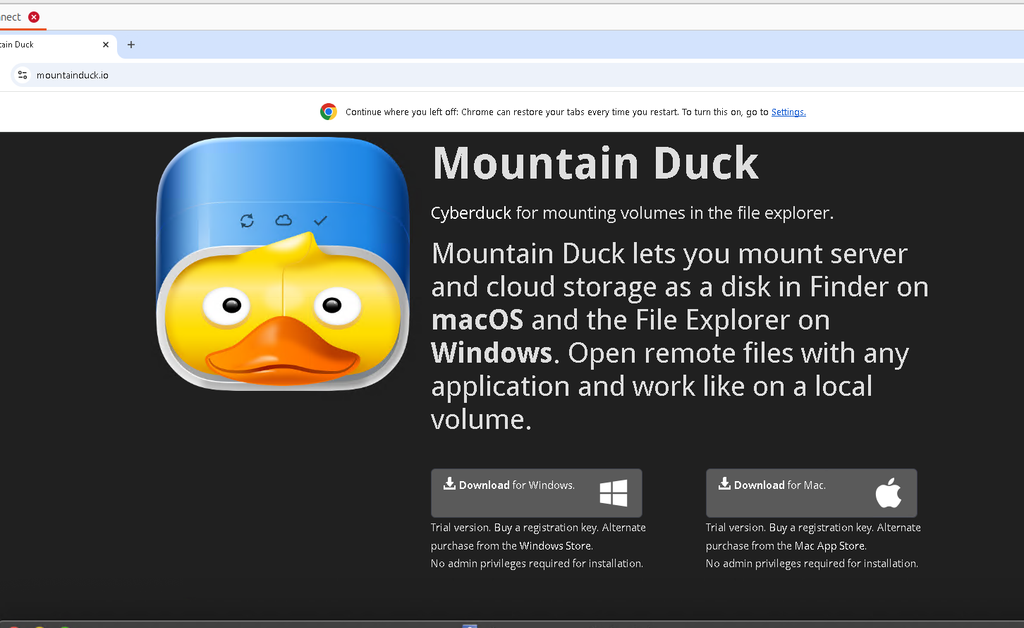
- Open mountainduck.io in your browser and click Download for Windows.
- Open your Downloads folder and double-click the file named Mountain Duck-5.3.2…msixbundle.
- Click Install. Keep Launch when ready ticked.
- If a Metered Connection warning appears, click Yes.
- Wait 1 to 2 minutes until installation finishes.
Step 2: Open Mountain Duck
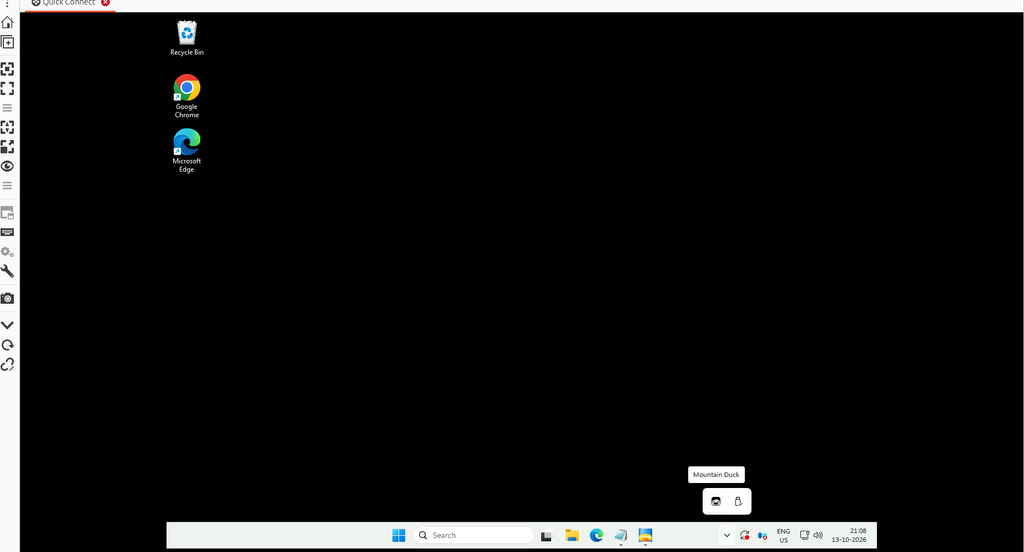
- Click the ^ arrow at the bottom-right of the taskbar to show hidden icons.
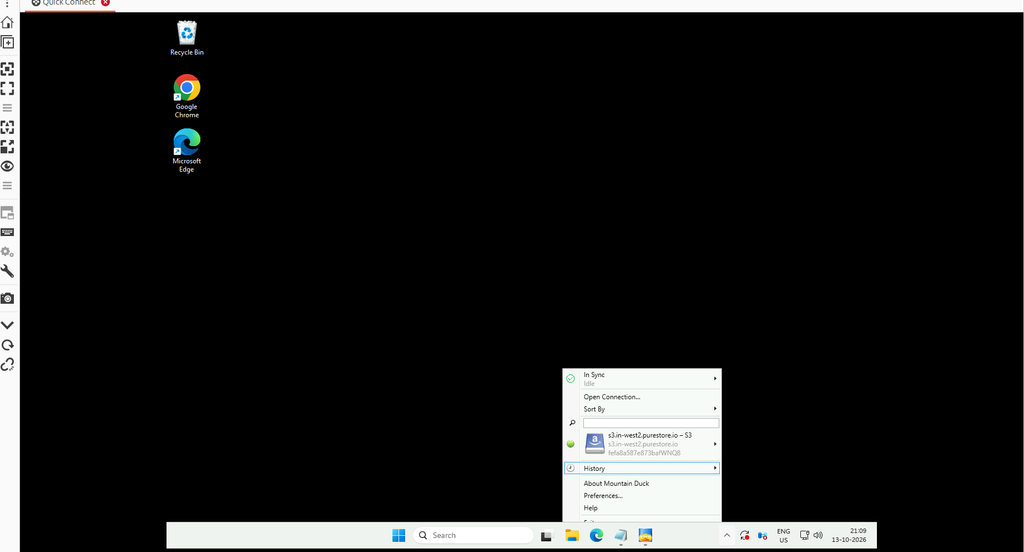
- Find the duck icon. Right-click it to open the Mountain Duck menu.
- If the app is not running, search Mountain Duck in the Start menu and open it.
Step 3: Change the Sync (Connect Mode) setting
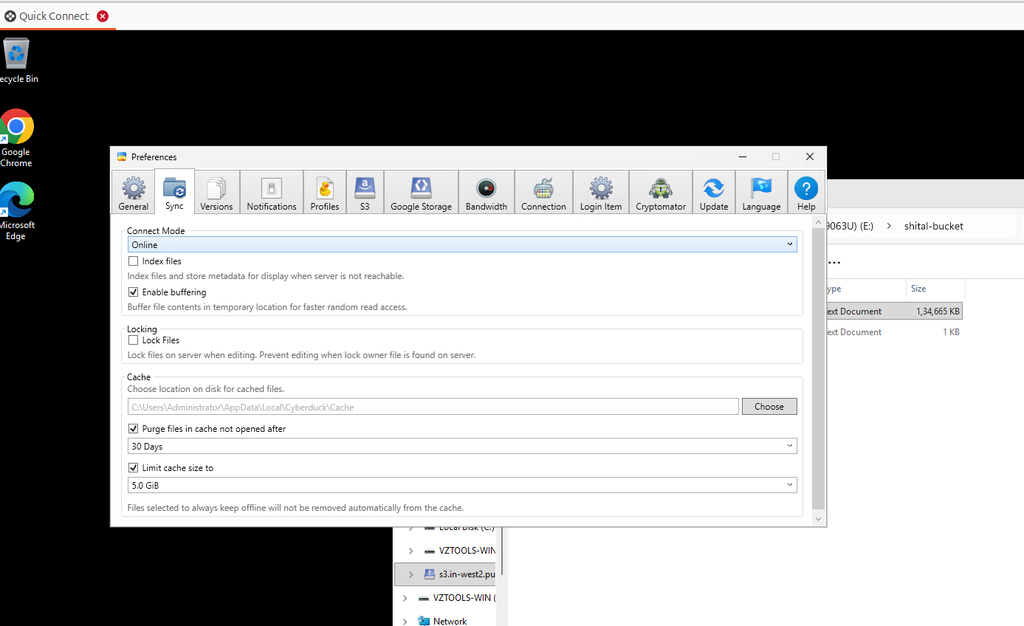
- Right-click the duck icon and click Preferences…
- Open the Sync tab.
- Under Connect Mode, open the drop-down and select Online.
- When the message Install missing driver? appears, click Yes. Approve the Windows permission prompt (UAC). Restart if Windows asks.
- Right-click the duck icon, click Exit, then open Mountain Duck again from the Start menu.
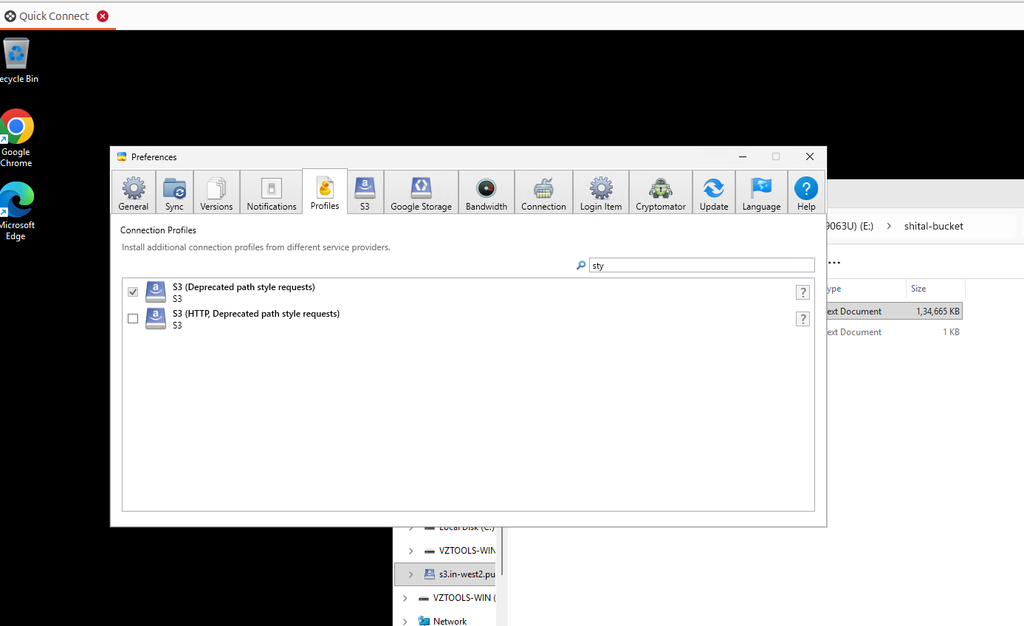
Step 4: Enable the path-style S3 profile
- Open Preferences… again and click the Profiles tab.
- Type s3 path in the search box.
- Tick S3 (Deprecated path style requests).
- Do not tick the one that says HTTP.
- Close Preferences, then Exit and reopen Mountain Duck.
Step 5: Create the connection (bookmark)
- Right-click the duck icon and choose Open Connection… (or New Bookmark).
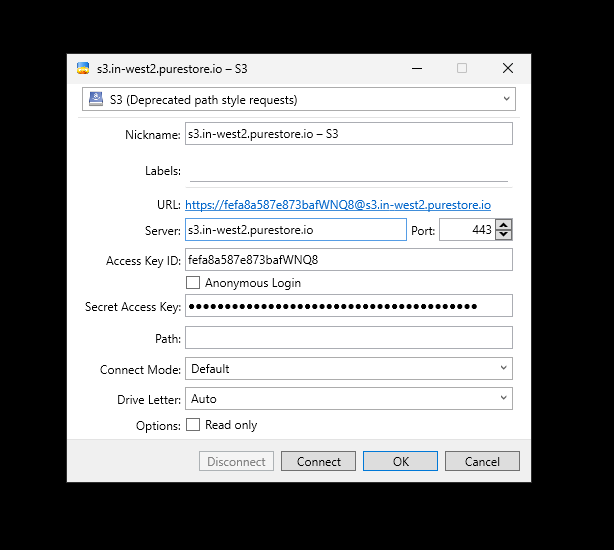
- In the first drop-down, select S3 (Deprecated path style requests). Do not use Amazon S3 or WebDAV.
- Fill the fields as in the table below.
- Click Connect. If asked, enter the Secret Access Key and click Login.
Step 6: In properties windows select S3 (Deprecated path style requests) profile from the first drop down list and specify below parameter.
- Nickname: Any name, for example cloudpe-s3
- Server: endpoint DNS name in the Server field,
- Port: 443
- Access Key ID: Your CloudPe access key
- Secret Access Key: Your CloudPe secret key
- Path: Leave empty
- Connect Mode / Drive Letter: Default/Auto
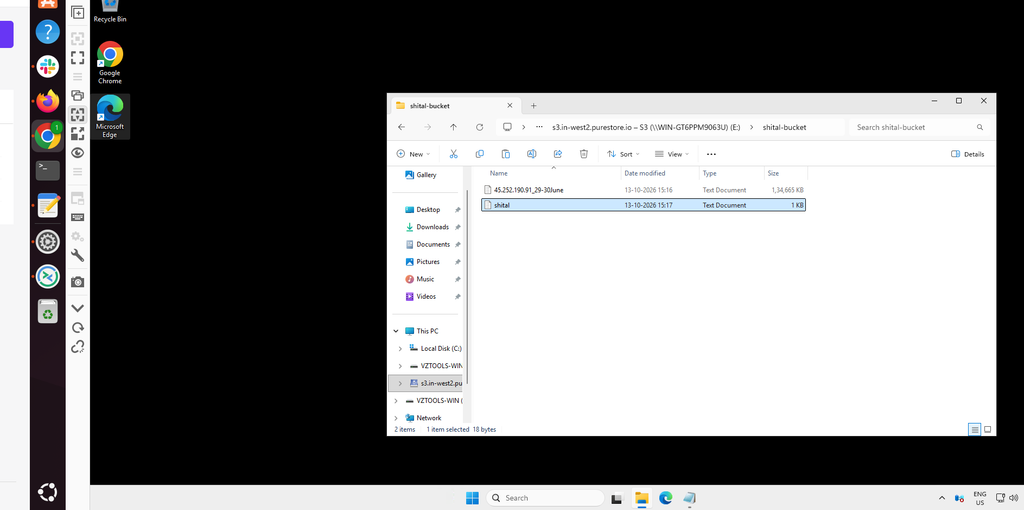
Step 6: Check that the drive is mounted
- Open File Explorer and click This PC. A new drive (for example E:) with your nickname appears.
- Open the drive and double-click your bucket .
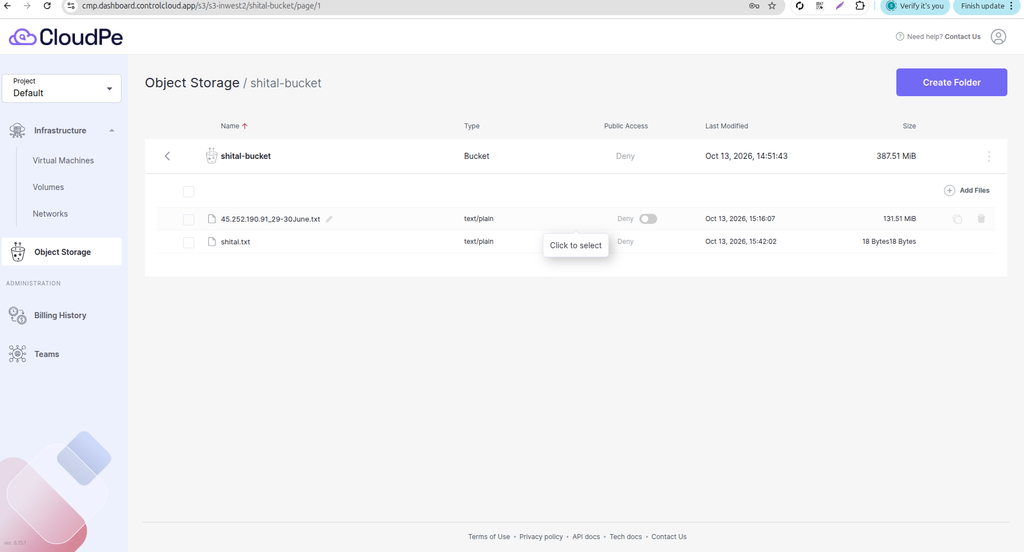
- The files stored in the CloudPe bucket are listed here.
Getting some error read the log and troubleshoot issue according error showing in logs:
- Open Preferences > Help and click Show next to Log.
- Open the file named mountainduck in Notepad and press Ctrl + End.
- If you see UnknownHostException / DNS lookup failed, use the path-style profile (Step 4).
- If you see 403 / AccessDenied, ask your administrator to allow ListBucket, GetObject, PutObject and DeleteObject on the bucket for your key.
Why we need to change Mountain Duck settings?
1] Online Mode:
- It enables Mountain Duck to integrate with Windows File Explorer.
- It allows to access CloudPe Object Storage as a drive on your Windows server.
- It makes managing remote files easier without downloading the entire bucket locally
2] Path Style Profile:
- CloudPe Object Storage requires the bucket to be addressed using the supported URL format.
- Path Style places the bucket name after the endpoint, for example: https://s3.in-west2.purestore.io/bucket-name.
- It helps Mountain Duck send requests to the correct bucket, avoiding addressing-related errors during file operations.