
Managing buckets
You can start creating buckets and uploading data in them. In an Amazon S3-like storage, a bucket is a uniquely named container for files, known as objects. Buckets are used to group and isolate objects from those in other buckets.
It is recommended to use bucket names that comply with DNS naming conventions:
- Must be from 3 to 63 characters long
- Must start and end with a lowercase letter or number
- Can contain lowercase letters, numbers, periods (.), hyphens (-), and underscores (_)
- Can be a series of valid name parts separated by periods
Limitations
- You can only delete an empty bucket.
To create a bucket
- Go to the S3 > Buckets screen, and click Create Bucket.
- In the Create bucket window, specify a name for the bucket, and then click Create.
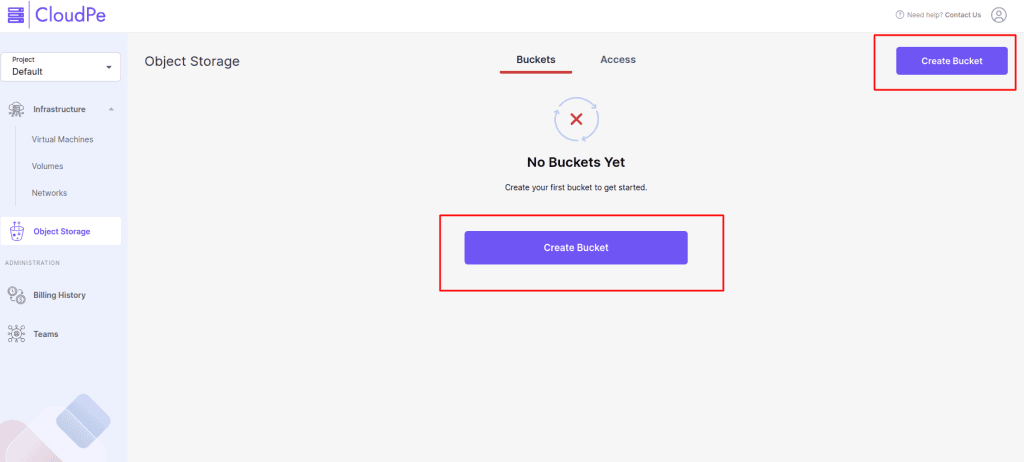
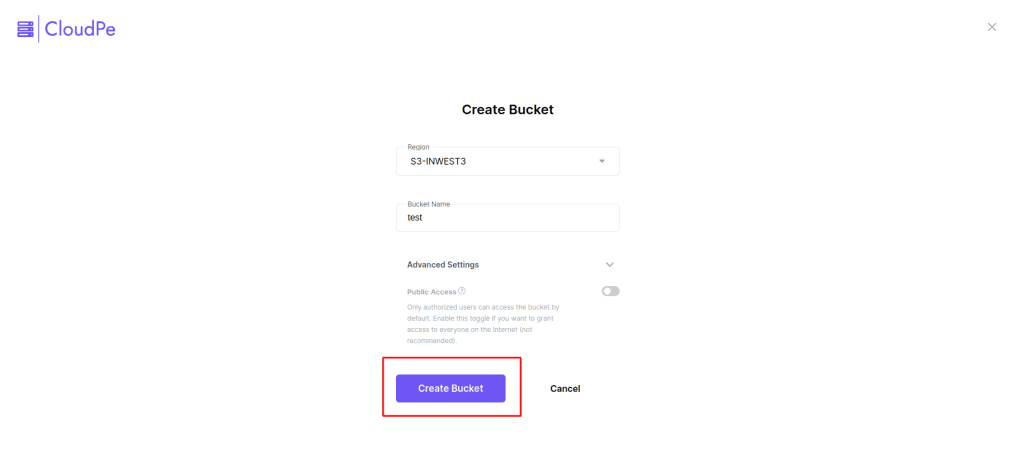
To list the bucket contents
Go to the S3 > Buckets screen, and click the bucket name to open the list of its contents.
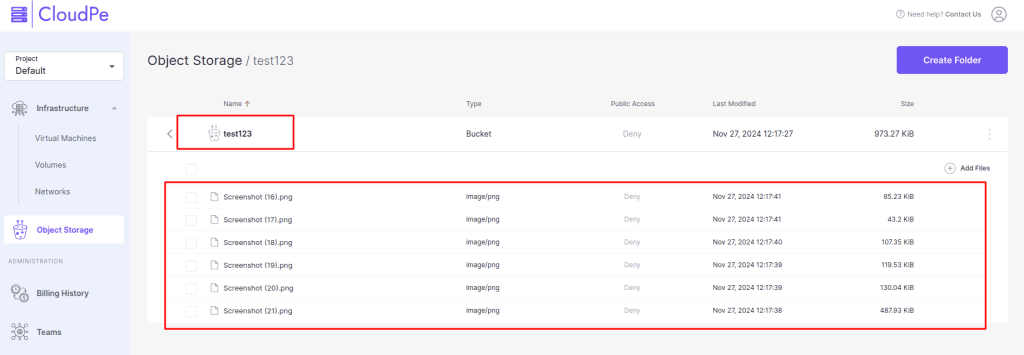
To delete a bucket
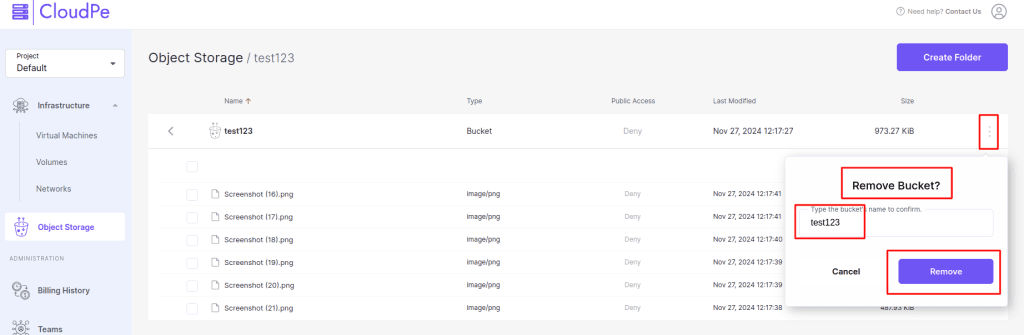
- Go to the S3 > Buckets screen, and click the required bucket.
- On the bucket right pane, click Delete.
- In the confirmation window, click Delete.
Managing access keys
After enabling access to the S3 storage, one access key pair is automatically generated for the current user. It is recommended to periodically delete old access key pairs and generate new ones. When you delete an access key, it cannot be retrieved.
Limitations
- You can have up to two access key pairs.
- If you have only one access key pair, it cannot be deleted.
Prerequisites
- Access to the S3 storage is enabled, as described in enabling access to S3 storage
To create an S3 access key pair
- Go to the S3 > Access screen.
- In the S3 access keys section, click Create.
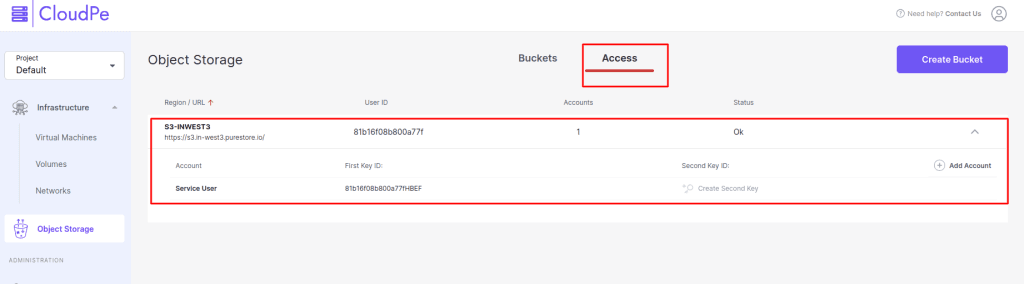
To copy an S3 access key pair
- Go to the S3 > Access screen.
- In the S3 access keys section, do the following:
- To copy an access key ID, click the copy icon next to the key.
- To copy a secret access key, click the ellipsis icon next to the key, and then click Copy secret access key.
To disable an S3 access key pair
- Go to the S3 > Access screen.
- In the S3 access keys section, click the ellipsis icon next to the required key, and then click Disable.
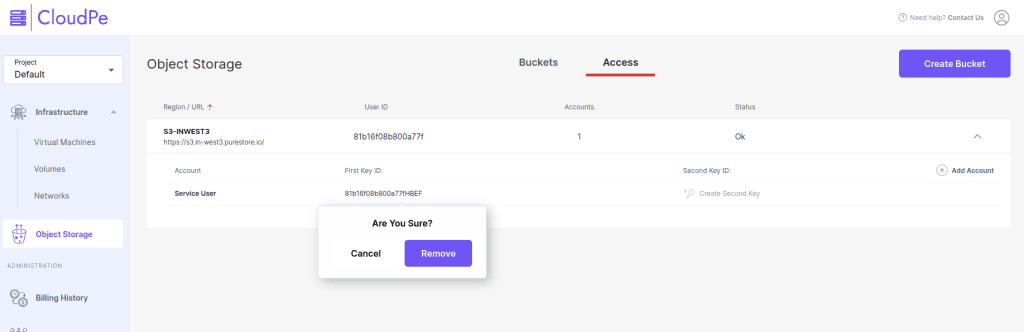
To delete an S3 access key pair
- Go to the S3 > Access screen.
- In the S3 access keys section, click the ellipsis icon next to the required key, and then click Delete.
Managing files and folders
Once you have a bucket, you can start populating it with data.
Prerequisites
- A bucket is created, as described in Managing Buckets.
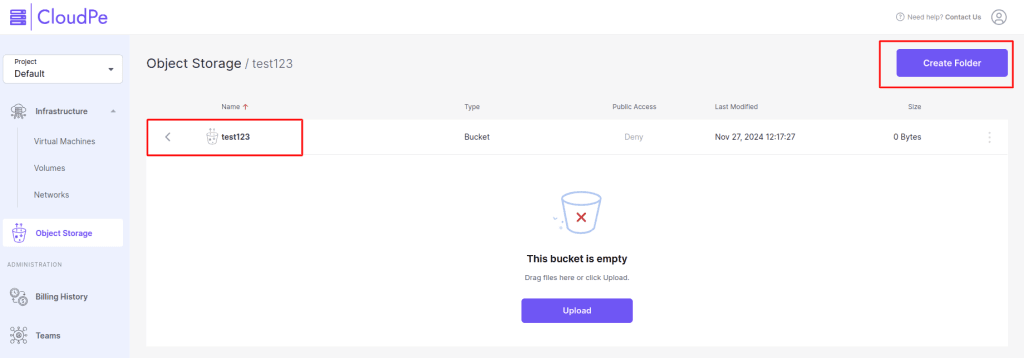
To create folders in a bucket
- Go to the S3 > Buckets screen, and click the bucket name.
- On the bucket screen, click Create folder.
- In the Create folder window, specify a name for the folder, and then click Create.
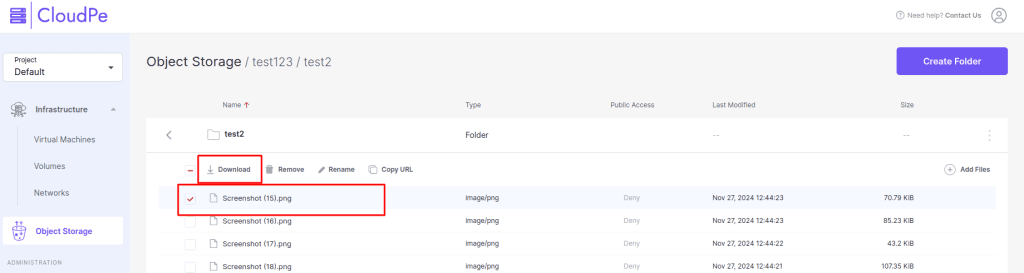
To download files from a bucket
- Go to the S3 > Buckets screen, click the bucket name and optionally the folder name.
- On the bucket or folder screen, click the required file.
- In the file right pane, click Download.
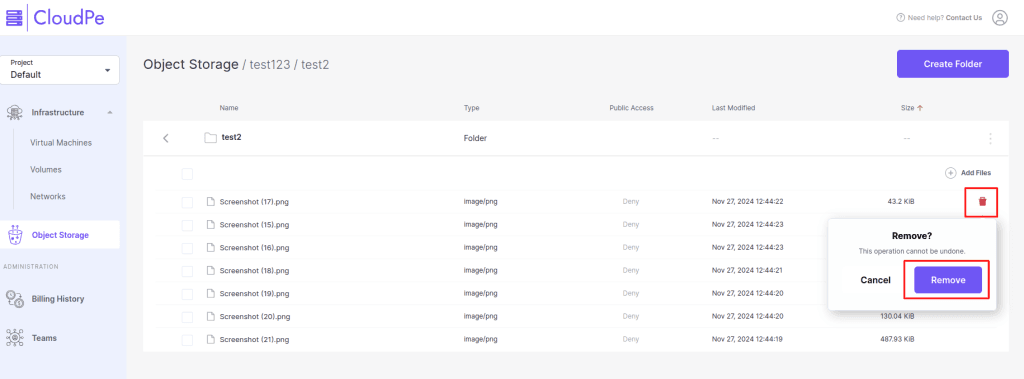
To delete a folder or a file
- Go to the S3 > Buckets screen, and click the bucket name.
- On the bucket, click the required file or folder to delete.
- In the file or folder right pane, click Delete.
Please give us feedback!